
Sceptre 22-Inch Gaming Monitor
4.4Editor score
Full HD 1080p display
Refresh rate up to 144Hz
HDMI and DisplayPort
Built-in stereo speakers
A monitor can make a Linux system feel polished or frustrating, with display support, touch behavior, and connector choices influencing the experience. The best monitor for Linux depends on whether you need precise color, smooth gaming, a portable workstation, or a dependable screen for Raspberry Pi and other embedded projects.
This guide compares ten monitors using the specifications and compatibility details provided for each model. It covers standard desktop displays, laptop screen extenders, compact touchscreens, and gaming monitors, with particular attention to Linux-related operating-system support, USB-C video output, HDMI, DisplayPort, and single-board computer use.
Each section explains the strongest use case, important specifications, and practical trade-offs. The three leading selections are highlighted in the top picks, while the comparison table provides a quick overview. Product ratings and availability can change over time, so readers should confirm current specifications, connector requirements, and pricing before purchasing.
4.4Editor score

4.9Editor score

4.6Editor score
As an Amazon Associate we earn from qualifying purchases.
The comparison covers every listed display and highlights its most decision-relevant specifications, including panel size, resolution, connectivity, and intended Linux use case.



The CIDETTY Laptop Screen Extender stands out as the most balanced option in this guide, combining a 4.9 rating with explicit support for Linux. It uses two ultra-thin 14-inch IPS panels, each resolving at 1920 x 1080, to turn a compatible laptop into a three-display workstation. That arrangement is particularly useful for Linux users who routinely keep documentation, terminal windows, communication apps, and virtual machines visible at the same time.
We may earn a commission when you buy through this link, at no additional cost to you.
Its 60Hz refresh rate is unremarkable for competitive gaming, but it suits office work, software development, system administration, and travel. The listed 300-nit brightness and 178-degree viewing angle make the screens practical for different angles, while a matte anti-glare coating can reduce distracting reflections. Independent brightness controls are helpful when two panels are positioned beside screens with different surroundings or lighting levels.
The main limitation is that full-featured USB-C or HDMI output must be available on the host computer. The product supports a one-cable USB-C arrangement when the port supports both charging and display transmission; otherwise, an HDMI connection plus a separate power connection is required. The telescopic stand is designed for 13-inch through 17.3-inch laptops, and its protective padding helps guard the laptop edge during travel.
This is the best monitor for Linux for travelers, programmers, analysts, and remote workers who want more workspace without carrying a conventional desktop display. Linux compatibility is expressly listed, and no driver is required. Buyers should still verify their laptop's port capabilities because older or unusual systems may not expose the required video signals.
Copy, mirror, and extended-display modes let the user organize applications according to the task. A terminal and reference documentation can remain visible on one panel while communication and creative tools occupy the other, reducing the need to repeatedly switch virtual desktops.
Linux appears directly in the compatibility list, while USB-C and HDMI options provide practical ways to connect supported laptops. The stated no-driver setup simplifies use with Linux distributions that do not require vendor-specific display utilities.
We may earn a commission when you buy through this link, at no additional cost to you.
The VIEWMEI 10.1-inch USB-C Touchscreen mini monitor earns a 4.7 rating and targets a specific but important Linux workflow: compact development, testing, and embedded projects. Its 1280 x 800 IPS display provides a conventional laptop-like canvas, while the small footprint and 520-gram weight make it easier to integrate with a single-board computer than a full desktop monitor.
We may earn a commission when you buy through this link, at no additional cost to you.
The product lists support for Raspberry Pi 5, Raspberry Pi 4, Raspberry Pi 3, Jetson Nano, Banana Pi, Windows systems, and other devices. It connects through HDMI for video and USB for touch and power, a useful combination for boards that expose separate display and USB interfaces. The enclosure also has four rear mounting holes, allowing it to be attached to a wall or incorporated into a custom enclosure.
Touch behavior differs by operating system. Windows 11, 10, 8, and 7 support ten-point touch, while Raspberry Pi OS, Ubuntu, Kali Linux, and Windows 10 IoT support single-point touch. This distinction matters for a kiosk, control panel, or dashboard where simultaneous touch input is unnecessary, but it also means multi-touch Linux interfaces will not gain the same interaction depth as Windows applications.
This is the best monitor for Linux when the primary computer is a Raspberry Pi or another SBC and the user values touch, mounting flexibility, and portability more than screen size. The 1280 x 800 resolution is appropriate for configuration dashboards and compact applications. It is less suitable for detailed color grading, extensive desktop multitasking, or a large permanent workstation.
HDMI video and USB input create a practical connection model for single-board computers. Explicit support for Ubuntu and Kali Linux makes the display immediately relevant to makers, terminal users, and administrators testing compact interfaces.
The capacitive touchscreen is useful for kiosk controls and quick system interaction. Four mounting holes simplify integration into projects where a freestanding desktop arrangement would be less convenient.
We may earn a commission when you buy through this link, at no additional cost to you.
The MNN 15.6-inch FHD portable monitor has a 4.3 rating and focuses on a balance of portability, familiar full-HD resolution, and flexible input. Its 1920 x 1080 IPS panel is large enough for ordinary Linux desktop work, while the slim construction and included smart cover suit travelers, students, and hybrid workers.
We may earn a commission when you buy through this link, at no additional cost to you.
Two full-feature USB-C ports provide convenience for power and display transmission, with a single USB-C cable able to handle both when the source device supports Thunderbolt 3 or USB 3.1 Type-C DisplayPort Alt Mode. HDMI is also available, and the compatibility list includes laptops, PCs, phones, MacBooks, and several game consoles. A Linux user should confirm that the selected USB-C port supports video output rather than charging alone.
Display options include copy, extended, second-screen, and portrait modes, making the panel useful for coding, monitoring, document review, and media viewing. HDR can produce brighter highlights and more vivid color, while the IPS panel offers a stated 178-degree viewing angle. The glossy surface may show reflections in bright rooms, and the 60Hz rate is less suitable for demanding competitive games.
This is the best monitor for Linux if a full-size, lightweight secondary display is the priority. The broad connection options and familiar resolution make it a flexible companion for a Linux laptop or small computer. Buyers should weigh the glossy surface carefully in brightly lit spaces and verify USB-C video support before ordering.
A supported USB-C source can send display information and receive power through one connection. This reduces cable clutter and allows the monitor to be deployed quickly between a desk, classroom, or temporary workstation.
Landscape, portrait, copy, and extended modes support different workflows. Portrait orientation can be particularly useful for reading long documents, source code, or system logs beside a primary Linux display.
We may earn a commission when you buy through this link, at no additional cost to you.
The ELECROW 10.1-inch touchscreen monitor provides a 4.4 rating and overlaps with the VIEWMEI model while offering a slightly different touch configuration and included protective acrylic case. Its 1280 x 800 IPS display gives embedded Linux projects a familiar workspace, and compatibility covers Raspberry Pi 5, 4, 3, Jetson Nano, Banana Pi, Windows computers, and other devices.
We may earn a commission when you buy through this link, at no additional cost to you.
The display and touch connection uses a practical HDMI-plus-USB arrangement. Video travels through HDMI, while touch and power are handled through USB. Linux users can use the monitor under Raspberry Pi OS, Ubuntu, Kali Linux, and Windows 10 IoT, with single-point touch on those Linux platforms and five-point touch under supported Windows versions.
Its four mounting holes and protective acrylic enclosure make it a good candidate for a built-in panel, wall-mounted terminal, compact security display, or maker project. At 521 grams and 24 by 15.7 centimeters, it remains easy to move between projects. The trade-off is that 1280 x 800 provides limited room for simultaneous complex windows, and Linux users should not expect the same multitouch experience listed for Windows.
This is the best monitor for Linux when a compact, mountable touch panel is needed more than a large desktop workspace. It is especially relevant to administrators creating a dedicated control station or developers prototyping a device with a Raspberry Pi. The included stand supports freestanding use, while the rear mounting points support a more permanent installation.
The combination of HDMI, USB touch, rear mounting holes, and a compact enclosure reduces the need for custom fabrication. It is a straightforward way to give an SBC-based project a visible and interactive interface.
The light 521-gram body is easy to transport between workspaces, and the acrylic case provides screen protection. This makes the monitor suitable for temporary deployments as well as dedicated installations.
We may earn a commission when you buy through this link, at no additional cost to you.
The KEFEYA Laptop Screen Extender carries a 4.5 rating and offers the largest multi-screen workspace in the guide. Two 15.6-inch Full HD IPS panels attach to a compatible laptop, effectively creating a three-screen workstation. That configuration can help Linux users run a terminal, browser, editor, chat client, and monitoring dashboard without constantly switching virtual desktops.
We may earn a commission when you buy through this link, at no additional cost to you.
Both panels claim 300-nit brightness, a 1000:1 contrast ratio, 100% sRGB coverage, and 1920 x 1080 resolution. Independent brightness, contrast, and backlight adjustment allows each display to be tuned separately. The screens can rotate 180 degrees, rotate for landscape or portrait use, and support mirror and extension modes, giving the hardware flexibility beyond a basic side-by-side arrangement.
Connection is most straightforward with full-featured USB-C ports that support charging and video transmission, or with an HDMI-to-USB-C video cable plus a USB-C-to-USB-C power connection. The included USB-A-to-USB-C cable is for power rather than display signal. Linux appears in the broad compatibility list, but the host's available ports remain the deciding factor for image output.
There is an important Mac exception: the product is not directly compatible with M1, M2, or M3 chips and requires an optional H6 adapter for those systems. Linux users are not subject to that listed limitation, though they should verify driver behavior and connector support. This is the best monitor for Linux for power users who value maximum workspace over minimalism.
The dual extender can isolate tasks that would otherwise overlap on one display. It is a strong match for programmers, traders, system administrators, and researchers who benefit from persistent reference material.
Full sRGB coverage and independently adjustable panel settings make the setup more versatile than a basic office extender. Rotating displays also allows users to fit vertical documents or code beside a landscape workspace.
We may earn a commission when you buy through this link, at no additional cost to you.
The Samsung 32-inch Odyssey G55C is built around gaming performance, making it a compelling monitor for Linux users who play games or want a capable high-refresh desktop. Its QHD resolution provides substantially more detail and workspace than Full HD, while the 165Hz refresh rate and 1ms MPRT response target fast-moving action.
We may earn a commission when you buy through this link, at no additional cost to you.
A 1000R curve wraps around the viewer to fill more peripheral vision, which can make an immersive gaming environment feel more encompassing. AMD Radeon FreeSync is included to synchronize the refresh rate with compatible graphics hardware and reduce image tearing. HDR10 support adds brighter highlights and deeper dark areas, although Linux users should check that their graphics stack and applications are configured to output HDR correctly.
The 32-inch size is large enough for immersive play and also offers considerable desktop utility. Eye Saver Mode minimizes blue light, and the screen is designed to reduce flicker during long sessions. Linux compatibility ultimately depends on the graphics card, the distribution's driver stack, and whether the game supports the selected display mode. The monitor itself does not require a proprietary Linux application for its core functions.
This is the best monitor for Linux for gamers who want a combination of high refresh rate, QHD detail, and a large screen. It is less compelling for buyers with limited desk space because the wide curved enclosure needs room. Users who work primarily in an office should also consider a flatter, less specialized alternative.
The 165Hz rate and 1ms MPRT response make fast action easier to follow. These features are particularly valuable for competitive games where visual clarity can influence reaction time.
QHD resolution improves detail, and the 1000R curve expands the apparent field of view. Together they create a display better suited to entertainment and fast-paced games than a basic office panel.
We may earn a commission when you buy through this link, at no additional cost to you.
The Sceptre 22-inch gaming monitor is a practical entry point for Linux users who want more refresh rate and flexible connectivity than a basic office screen without moving to a premium gaming panel. It offers Full HD 1080p resolution, a refresh rate of up to 144Hz, and both HDMI and DisplayPort, allowing it to work with a wide range of graphics hardware.
We may earn a commission when you buy through this link, at no additional cost to you.
Built-in speakers are a useful addition for a compact Linux workstation, allowing system alerts, calls, and media to play without separate desktop speakers. Blue-Light Shift technology reduces blue light emissions for longer viewing sessions, while the nearly bezel-free design is suitable for a dual-monitor arrangement. These convenience features make the display more useful for everyday work as well as gaming.
The chief limitation is Full HD resolution on a 22-inch panel. It remains crisp for many desktop applications, but it does not provide the fine detail, text area, or multitasking capacity of QHD or 4K alternatives. The supplied data does not list detailed color gamut, brightness, or adaptive-sync figures, so buyers with specialized color or synchronization requirements should not assume capabilities that are not specified.
This is the best monitor for Linux for students, home-office users, and casual gamers seeking a compact high-refresh display. Standard Linux desktops can use the display through the available digital connections, and the speakers reduce desk clutter. It is a strong general-purpose choice when performance and practicality matter more than maximum resolution.
A refresh rate of up to 144Hz provides a useful improvement for scrolling and motion-heavy content. The Full HD mode also places less demanding load on a graphics card than a larger QHD or 4K display.
Integrated speakers remove the need for separate audio hardware in a basic setup. A slim bezel also supports an efficient dual-display arrangement on a modest desk.
We may earn a commission when you buy through this link, at no additional cost to you.
The ASUS ROG XG27AQDMGR is the premium gaming choice in this guide, combining a 4.6 rating with a 27-inch QHD TrueBlack Glossy WOLED panel. Its 2560 x 1440 resolution supplies a refined mix of detail and performance, while the 240Hz refresh rate and 0.03ms gray-to-gray response time target demanding motion.
We may earn a commission when you buy through this link, at no additional cost to you.
Color performance is a major strength. VESA DisplayHDR 400 True Black compliance, 99% DCI-P3 gamut coverage, true 10-bit color, and a Delta E of less than 2 support accurate and vivid output. These specifications appeal not only to gamers but also to Linux creators who work with color-managed applications, provided their software and GPU configuration support the required workflows.
ASUS OLED Care Pro uses a Neo Proximity Sensor to detect when the user leaves and switch the panel to black, reducing the risk of burn-in. DisplayWidget Center provides mouse-based access to OLED Care functions and monitor settings. A three-year warranty with advance replacement and burn-in coverage adds reassurance, while ROG Gaming A.I. adds hardware-specific gaming features.
This is the best monitor for Linux for a premium desktop devoted to gaming, motion, and color-sensitive creative work. Linux users should verify support for the desired high-refresh modes and adaptive synchronization through their graphics stack. The glossy finish can show reflections, and OLED characteristics require sensible viewing habits despite the included protection features.
Wide DCI-P3 coverage and true 10-bit color make the display suitable for demanding creative work. The stated Delta E figure indicates that the panel can reproduce colors closely when properly calibrated.
A 240Hz refresh rate and 0.03ms response time provide a strong foundation for fast games. QHD output preserves useful sharpness while giving demanding scenes enough pixel detail to remain clear.
We may earn a commission when you buy through this link, at no additional cost to you.
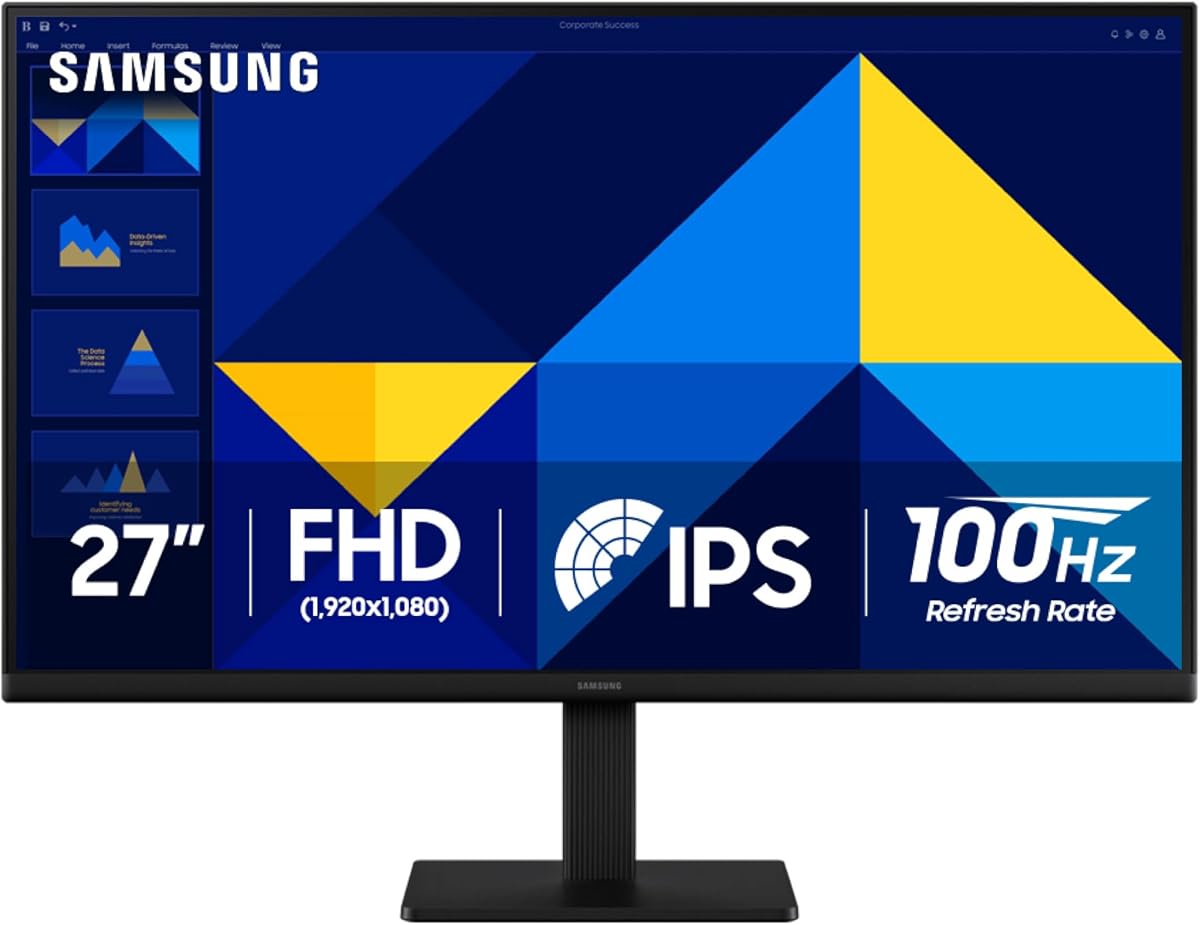
The Samsung 27-inch S30GD provides a straightforward modern display for Linux productivity, combining an IPS panel with a 100Hz refresh rate. Its 4.5 rating reflects a well-rounded general-purpose option that handles office work, web browsing, programming, video, and casual gaming without trying to specialize in one narrow use case.
We may earn a commission when you buy through this link, at no additional cost to you.
The IPS panel is designed to maintain clear and consistent colors as viewing angles change, which is useful when the monitor is positioned slightly off-axis. The 100Hz rate reduces lag and motion blur compared with a conventional 60Hz office display, giving menus, scrolling, and animation a smoother appearance. Linux users should confirm the monitor's available resolution and refresh-rate combinations with the graphics output of their computer.
Game Mode adjusts color and contrast to make scenes clearer, while reduced blue light and screen flicker support longer sessions. A super-slim design and ultra-thin border bezels produce a clean appearance and can make the display suitable for a dual-monitor setup. Direct connection to devices is also supported, although the supplied information does not enumerate the exact port types.
This is the best monitor for Linux for a general-purpose desktop where smooth motion, consistent color, and a modern appearance matter more than high-end gaming or an ultra-detailed 4K canvas. It may suit office software, remote work, monitoring dashboards, and general development. Users who require specific ports, maximum resolution, or advanced synchronization should verify the full hardware specification.
The 100Hz refresh rate makes routine interaction feel more fluid than a standard 60Hz panel. It also gives casual games enough headroom without adopting the complexity of a dedicated esports display.
Slim bezels keep the screen visually open, while blue-light reduction and flicker reduction target viewing comfort. The understated design fits both office and home environments.
We may earn a commission when you buy through this link, at no additional cost to you.
The Samsung ViewFinity S7 S71H is designed for users who need a detailed, high-resolution workspace. Its 4K UHD panel delivers 3840 x 2160 pixels on a 27-inch IPS display, offering enough density for fine text, complex diagrams, dense code, and professional applications. The monitor's 4.6 rating reinforces its position as a strong productivity-focused option.
We may earn a commission when you buy through this link, at no additional cost to you.
HDR10 support is listed with a gamut of more than one billion colors, along with darker blacks and brighter highlights. That makes the display relevant to photo review, video editing, interface design, and other visual work, provided the Linux graphics stack and application support HDR correctly. The panel also includes Game Mode for quick color and contrast adjustments.
HDMI and DisplayPort connectivity makes it straightforward to use with modern Linux workstations, laptops, and compatible docking stations. TÜV-certified Eye Saver Mode reduces blue light and prevents screen flickering, which is valuable for long coding or document sessions. The main practical concern is GPU demand: rendering a 4K desktop at high refresh rates may require a capable graphics card, especially when using several high-resolution displays.
This is the best monitor for Linux for software developers, designers, analysts, and office professionals who prioritize resolution over maximum gaming refresh rate. It creates room for dense windows and precise visual work without moving to a larger 32-inch panel. Buyers should ensure their hardware can drive 4K comfortably and use the correct display configuration for their Linux distribution.
A 27-inch 4K display offers more usable space and sharper text than Full HD. It suits code review, spreadsheets, detailed illustrations, and applications where small visual elements matter.
HDR10 expands contrast for supported content, while Eye Saver Mode addresses blue light and flicker. Together they improve the display's suitability for extended professional and creative sessions.
We may earn a commission when you buy through this link, at no additional cost to you.
The right Linux monitor depends on the graphics hardware, Linux distribution, applications, workspace size, and portability needs. These factors help narrow the field before deciding on resolution, connectivity, touch support, or refresh rate.
Choose a display whose core functions use standard HDMI or DisplayPort input whenever possible. Advanced features are best treated as optional enhancements rather than the basis for compatibility.
Match resolution to the panel size and workload. A small Full HD screen is useful for travel, while a 27-inch 4K display favors detailed professional work.
Full-featured USB-C is convenient, but HDMI remains a dependable fallback. Verify video output and power delivery separately before purchasing.
Single-point touch is enough for buttons and simple controls. Advanced multitouch interfaces require a display with confirmed native Linux support.
Prioritize resolution for office work and refresh rate for motion. A fast panel cannot overcome weak GPU performance or unsupported Linux synchronization.
Check gamut, bit depth, calibration claims, and viewing-angle behavior. Treat HDR as a system capability rather than an isolated monitor feature.
Choose the smallest screen that still supports the intended workload. Add a protective cover and ensure any mounting hardware matches the project design.
Plan the entire connection before buying. A capable display is less useful if cables, adapters, audio, or USB bandwidth become an afterthought.
Connect the display using the most appropriate digital interface available on the Linux computer. For a conventional desktop, enable the monitor in the distribution's display settings and choose the desired resolution and refresh rate. For portable USB-C models, confirm that the source port supports DisplayPort Alt Mode or Thunderbolt before changing cables. If the image appears but the refresh rate is limited, review the cable, graphics card, and desktop display configuration rather than assuming the monitor is faulty.
For a touchscreen connected to a Raspberry Pi or another single-board computer, route video through HDMI and touch through USB as specified by the manufacturer. Check the Linux input devices after startup and install the relevant touch driver if the distribution does not detect the panel automatically. Test both single-point input and any required multitouch gestures, then use the rear mounting holes to secure the display in its intended orientation.
Operate the screen within its stated environmental and handling limits. Clean it with a soft, lint-free cloth and avoid spraying liquid directly onto the panel. Portable displays should be folded or protected in their covers, and laptop extenders should be attached without forcing the telescopic arm. For OLED models, use the supplied care features and avoid leaving static bright content onscreen for unnecessarily long periods. Periodically inspect cables and connectors, especially when Linux issues are intermittent.
Standard HDMI and DisplayPort displays generally work with mainstream Linux distributions because those interfaces are widely supported. Touch, HDR, high-refresh modes, and adaptive synchronization may require additional drivers or configuration. Compatibility is strongest when the display relies on standard Linux graphics stacks and conventional video inputs.
The CIDETTY dual screen extender is the strongest option for maximum workspace because it explicitly supports Linux and includes a one-cable USB-C path for compatible computers. The MNN 15.6-inch monitor is a simpler alternative for users who need one portable Full HD screen. Check the laptop's USB-C video capabilities before either purchase.
Yes, and the VIEWMEI and ELECROW models are specifically designed for Raspberry Pi and other single-board computers. They use HDMI for video and USB for touch and power, and their specifications include support for Ubuntu, Kali Linux, and Raspberry Pi OS. The number of simultaneous touch points differs between Windows and Linux.
QHD is often a balanced choice because it provides more workspace than Full HD while remaining practical for many graphics cards. A 27-inch 4K monitor offers superior text density and more room for complex applications, but it demands more graphics processing. The best choice depends on screen size, GPU capability, and viewing distance.
Basic operation over HDMI or DisplayPort generally does not require a vendor-specific monitor driver. The graphics driver and desktop compositor determine the available modes, and adaptive synchronization may need configuration within the Linux control panel. If a high refresh rate is unavailable, check the cable, selected mode, and GPU output configuration.
No. The connected USB-C port must support video output, and some systems also require a separate power connection. HDMI can be an alternative, but the laptop still needs a suitable HDMI output and the correct cables. Reviewing the computer's manual and the monitor's connection guide prevents avoidable compatibility problems.
The Samsung Odyssey G55C and ASUS ROG XG27AQDMGR are designed for gaming, with high refresh rates, fast response specifications, and QHD resolution. The ASUS model adds premium OLED color and motion performance, while the Samsung offers a larger curved display. Hardware capability, supported graphics modes, and personal preference should guide the final choice.
Built-in speakers normally work through the Linux sound system when the monitor is connected over HDMI or DisplayPort, provided the desktop selects the correct output device. They are convenient for system sounds and casual media, though dedicated speakers or headphones usually provide better control and audio quality.
The CIDETTY dual screen extender is the leading choice for Linux because it combines explicit compatibility, two Full HD IPS panels, a travel-friendly design, and flexible extended-display use. The VIEWMEI 10.1-inch touchscreen is ideal for Raspberry Pi and embedded Linux work, while the ASUS ROG XG27AQDMGR delivers the strongest premium gaming and color-focused specifications.
Prioritize the features your Linux workflow actually requires. A portable user should confirm USB-C video support, an SBC maker should match the operating system's touch capabilities, a gamer should check refresh rate and synchronization, and a professional should prioritize resolution and color. Ports, drivers, and application support matter more than a generic compatibility label.
Finally, confirm current specifications, warranty terms, and pricing before buying because product details and market availability can change. The ratings in this guide reflect the supplied product data and offer a useful comparison point, but they are not a substitute for checking the latest manufacturer information or the exact configuration of your Linux computer.