
WAVLINK 13-in-1 TB5 NVMe Dock
4.7Editor score
Integrated PCIe 4.0 NVMe slot
64Gbps M.2 transfer bandwidth
Triple high-refresh displays
140W host power delivery
SD 4.0 card reader
Our Thunderbolt 5 Dock guide compares ten leading docks for display support, power delivery, networking, storage, compatibility, and productivity needs.
A Thunderbolt 5 Dock can turn a compatible laptop into a compact workstation with high-speed storage, wired networking, multiple displays, USB peripherals, card readers, and host charging. The best model depends on your computer, display configuration, power demands, and whether you value a simple desk setup or specialized features such as an integrated NVMe slot.
We compared all ten products by examining their documented port layouts, Thunderbolt bandwidth, supported display modes, host and peripheral charging, Ethernet speed, card-reader capabilities, storage options, cooling systems, and stated compatibility requirements. The list includes native Thunderbolt 5 docks, Thunderbolt 4 alternatives, and one Thunderbolt 4 dock that remains compatible with Thunderbolt 5 hosts.
Each review identifies what the dock does best, where its compromises lie, and which users should consider it. Ratings and specifications can change over time, as can pricing, bundled accessories, firmware, and operating-system compatibility, so check the current product listing and your computer's specifications before purchasing.
4.7Editor score

4.8Editor score
4.4Editor score
This side-by-side comparison highlights each dock's core strengths, from native Thunderbolt 5 performance and integrated NVMe storage to multi-monitor support, wired networking, charging capacity, and compatibility with different host systems.
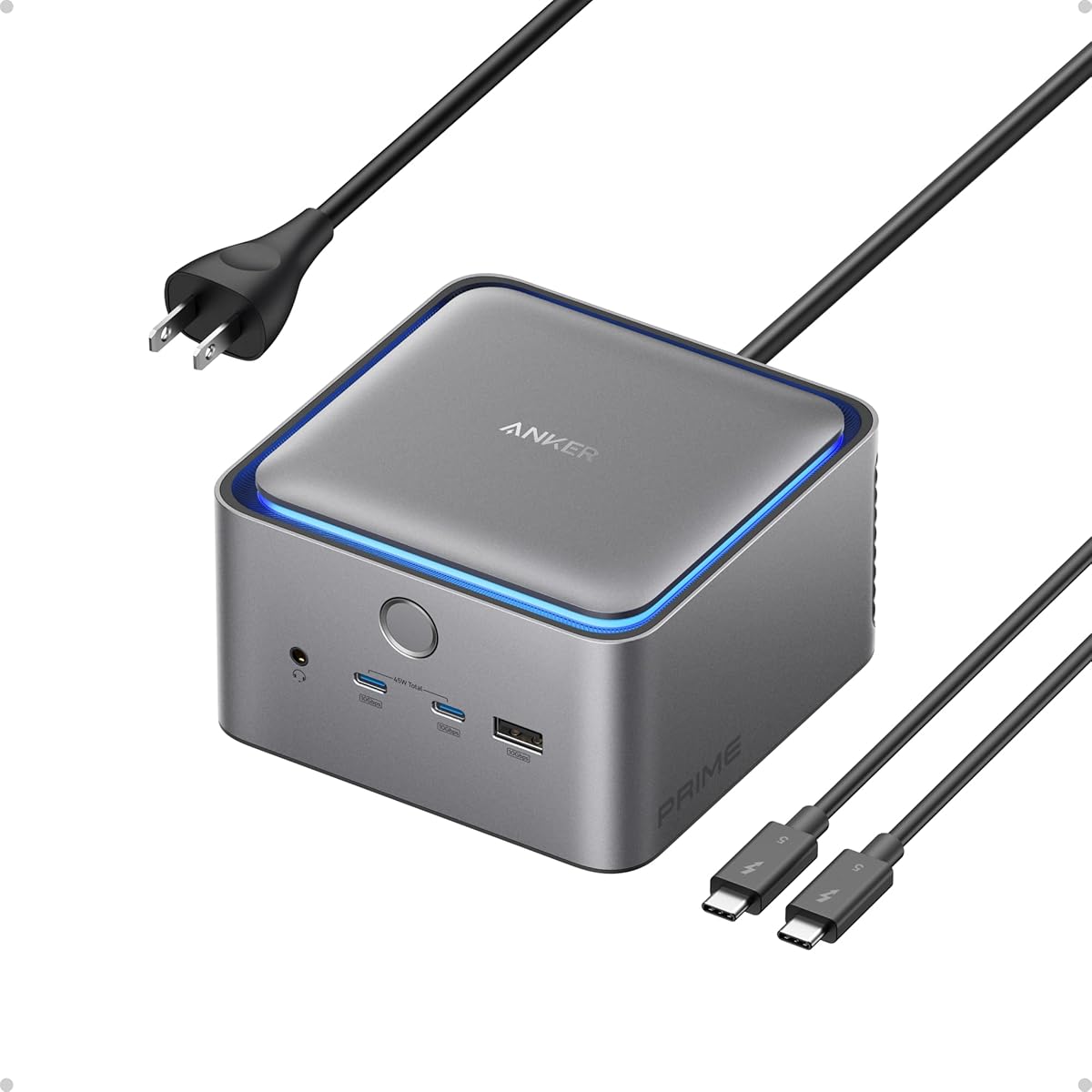


The Anker Prime TB5 is a 14-port Thunderbolt 5 docking station with a 4.2 rating and a notably complete set of connections. It combines two downstream Thunderbolt 5 ports, two USB-C ports, three USB-A ports, SD and TF readers, 2.5Gbps Ethernet, an audio jack, and an HDMI 2.1 or DisplayPort 2.1 output. That breadth makes it a strong general-purpose choice for a desk that needs data, displays, networking, charging, and removable media access.
We may earn a commission when you buy through this link, at no additional cost to you.
Its standout strength is the balance between host performance and peripheral flexibility. The upstream Thunderbolt 5 connection supports up to 140W host charging, while the dock can drive a single 8K display at 60Hz or two 8K displays at 60Hz on compatible Thunderbolt 5 Windows laptops. Anker also includes an active cooling system designed to reduce the risk of thermal throttling when the dock is working with several high-bandwidth devices.
The main compromise is that the front-facing USB-C ports share a combined 45W rather than offering a large dedicated charging allocation. The display claims also require a suitable host and the correct output arrangement, so buyers should not assume that every laptop will reproduce the maximum configuration. Despite those limitations, the large port inventory and included accessories make setup straightforward.
This is the most balanced recommendation for users who want a native Thunderbolt 5 dock without paying for a specialized internal-storage design. It is particularly suitable for Windows power users, creative professionals, and hybrid workers who need a single-cable connection to a multi-display desk. Users who only need basic USB expansion may find it more elaborate than necessary, but for a broad and performance-oriented feature set, it remains an excellent choice.
The dock can support one 8K display at 60Hz or dual 8K outputs on compatible Thunderbolt 5 Windows laptops. Its combination of DisplayPort 2.1 or HDMI 2.1 and downstream Thunderbolt video gives users several ways to arrange a high-resolution workspace.
Up to 140W through the upstream port keeps demanding laptops powered while connected. Active cooling is particularly useful during sustained file transfers, external storage work, or multi-display operation where passive designs may run warmer.
We may earn a commission when you buy through this link, at no additional cost to you.
The WAVLINK 12-in-1 Thunderbolt 5 Dock offers a 4.1 rating and an unusually flexible arrangement of four Thunderbolt 5 ports. One serves as the 120Gbps upstream connection to the computer, while three downstream ports provide 80Gbps data bandwidth and offer 15W or 30W peripheral charging. The remaining connections cover 2.5G Ethernet, four USB-A 3.2 ports, an SD 4.0 reader, and a 3.5mm audio and microphone jack.
We may earn a commission when you buy through this link, at no additional cost to you.
The dock is designed for users who want both display expansion and a sizable pool of high-speed connections. WAVLINK lists single-display 8K at 144Hz, dual-display 8K at 60Hz, and triple-display 4K at 144Hz support on compatible systems. The SD 4.0 reader can transfer data at up to 312MB/s, which is valuable for photographers and videographers who regularly import camera media.
Compatibility is the principal caveat. Triple external displays require a Windows 11 or later computer with a Thunderbolt 5 port, while macOS is limited to two external displays through this dock. The host USB-C port must support Thunderbolt 4 or 5, and actual display performance depends on the device, operating system, cables, and compatibility list. USB-C-to-HDMI or DisplayPort cables and the security lock are not included.
This model is a strong fit for Windows creative workstations that need several downstream Thunderbolt devices, additional charging, and a fast card reader. It is less suitable for Mac users who need three displays or for buyers expecting the security lock and video adapters in the box. With a documented two-year warranty and technical support, it remains a capable Thunderbolt 5 option.
Three downstream Thunderbolt 5 ports are more than a typical docking-station allowance. They can connect high-speed storage, displays, and other compatible accessories while also providing limited device charging.
The SD 4.0 reader reaches up to 312MB/s, making it easier to move large card-based projects into the workstation quickly. Actual sustained performance depends on the cards and host system.
We may earn a commission when you buy through this link, at no additional cost to you.
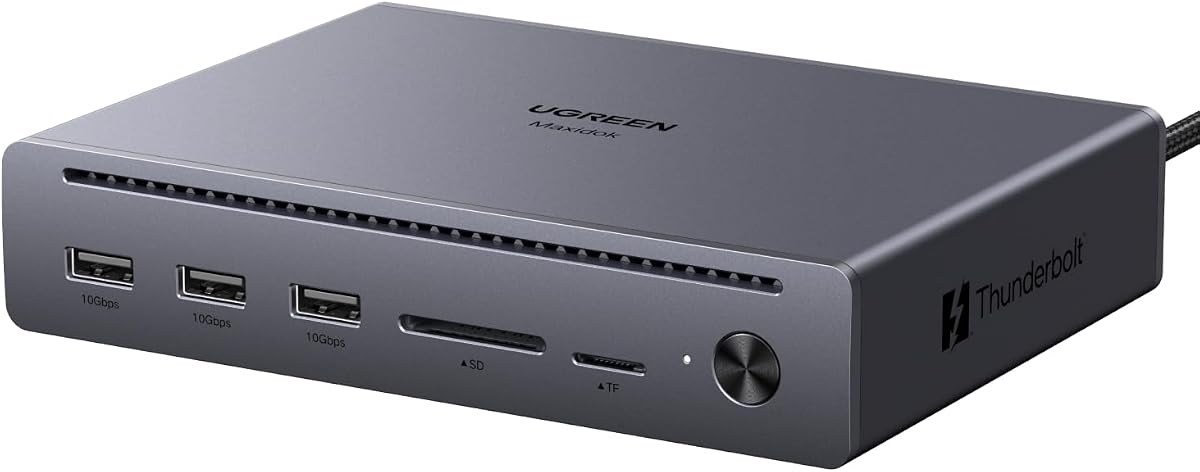
The UGREEN Maxidok 10-in-1 has a 4.4 rating and delivers a strong set of core Thunderbolt 5 features without an integrated storage slot. Its ports include three 10Gbps USB-A connections, an SD and TF 3.0 reader, Gigabit Ethernet, DisplayPort 2.1, and two downstream Thunderbolt 5 ports, plus the upstream host connection and power input.
We may earn a commission when you buy through this link, at no additional cost to you.
For display-focused users, the dock supports single or dual 8K output at 60Hz and triple 4K output at 144Hz through the combination of DisplayPort 2.1 and Thunderbolt connections. The Intel-certified Thunderbolt 5 link provides up to 120Gbps unidirectional or 80Gbps bidirectional bandwidth and is backward compatible with Thunderbolt 4, Thunderbolt 3, and USB4 systems.
Its charging limit is up to 100W for the host, which is substantial but below the 140W offered by several rivals. The DisplayPort output does not support DP++, so connecting an HDMI display requires an active DisplayPort-to-HDMI adapter or cable. Its Gigabit Ethernet also lacks the 2.5Gb performance found in most premium docks. In return, the aluminum body and fanless thermal design provide quiet operation.
This is the best-value recommendation for a user who prioritizes multi-monitor expansion, silent operation, and fast Thunderbolt connectivity but does not need 2.5Gb networking or onboard NVMe storage. It suits creative offices, development desks, and advanced home setups that use a compatible Windows laptop. Buyers should verify display support and charging requirements for their exact host before ordering.
Triple 4K at 144Hz support can make the dock useful for timelines, monitoring interfaces, and dense productivity layouts. Host operating-system rules and display capabilities still determine the final resolution and refresh rate.
The fanless aluminum design avoids the mechanical noise of an active cooler. Internal thermal management is intended to keep sustained performance stable during extended use.
We may earn a commission when you buy through this link, at no additional cost to you.
The UGREEN Maxidok 17-port Thunderbolt 5 dock is built as a desktop command center rather than a minimal adapter. It includes three 10Gbps USB-A ports, three 10Gbps USB-C ports, SD and TF 4.0 readers, three 3.5mm audio connections, 2.5Gb Ethernet, DisplayPort 1.4, and two downstream Thunderbolt 5 ports. Its defining feature is a built-in PCIe 4.0 x4 M.2 slot capable of supporting NVMe SSDs up to 8TB.
We may earn a commission when you buy through this link, at no additional cost to you.
The internal storage slot makes this dock appealing to video editors, photographers, developers, and engineers who want fast local working storage without a separate enclosure. Users can install a compatible SSD, use it for high-speed project files, and reduce repeated transfers to internal laptop storage. The dock also supports dual or single 8K displays at 60Hz on Windows using two Thunderbolt outputs and DisplayPort, while Mac systems support dual displays.
There are important physical and thermal restrictions. The NVMe bay accepts 2230 through 2280 drives with a height no greater than 12mm and a width no greater than 24mm. Several drives with larger OEM heatsinks are expressly excluded. An active 60mm fan helps maintain performance under heavy load, although UGREEN states that fan noise below 30dB is normal. The host and peripherals are also subject to an overall 240W power budget.
Choose this model when one cable should connect a laptop to extensive storage, networking, displays, charging, and audio equipment. It is less appropriate for anyone seeking a simple dock, a fanless unit, or universal M.2 compatibility. For users who verify SSD dimensions and accept active cooling, however, the combination of 17 ports and integrated high-speed storage is highly compelling.
The M.2 slot turns the dock into a combined storage and connectivity hub. It is especially convenient for projects that benefit from a fast local drive without occupying the laptop's own storage or requiring another desk device.
Seventeen connections cover high-speed USB, Thunderbolt, removable media, audio, video, networking, and charging. The breadth reduces adapter clutter, although it also makes the dock physically more substantial.
We may earn a commission when you buy through this link, at no additional cost to you.
The WAVLINK 13-in-1 TB5 dock with NVMe M.2 combines a 4.7 rating with a feature set aimed at creative and technical professionals. It provides one upstream Thunderbolt 5 port, three downstream Thunderbolt 5 ports, a PCIe 4.0 x4 M.2 slot, 2.5G Ethernet, four USB-A 3.2 ports, an SD 4.0 reader, audio, and a Kensington slot. The host connection supports 140W, while downstream ports can deliver 15W or 30W.
We may earn a commission when you buy through this link, at no additional cost to you.
Its standout feature is the internal M.2 storage system, which supports up to 64Gbps read and write performance with compatible PCIe 4.0 x4 NVMe drives. That makes it possible to use the dock as a direct editing and caching platform, importing camera files through the SD 4.0 reader and working with RAW footage, PSD files, 3D assets, repositories, containers, and virtual machines.
The display specification is equally ambitious, with listed support for single 8K at 144Hz, dual 8K at 60Hz, and triple 4K at 144Hz. Real-world output remains dependent on the host. Triple external displays require Windows 11 or later with Thunderbolt 5, and macOS supports two external displays. The SSD bay specifically requires an M-key 2280 drive, and neither an SSD nor display adapters are included.
This is the recommendation for creators and developers who want integrated high-speed storage and can accept the stricter compatibility requirements. It may be overkill for standard office use, but it reduces the need for separate storage enclosures and allows a laptop-centered workstation to remain visually organized. For the right user, it represents one of the most complete Thunderbolt 5 dock designs in this comparison.
The 64Gbps-capable M.2 slot allows fast media to remain close to the workstation. This can improve import and local-cache workflows, provided the installed drive, enclosure interface, files, and host all support the expected throughput.
Up to three 4K displays at 144Hz on compatible Windows systems creates a high-refresh canvas. Creators should still account for adapter bandwidth, DSC support, operating-system limits, and the capabilities of each monitor.
We may earn a commission when you buy through this link, at no additional cost to you.
The WAVLINK Thunderbolt 4 dock is a practical alternative for buyers who do not need full Thunderbolt 5 bandwidth. It carries a 4.3 rating and combines two HDMI outputs, a downstream Thunderbolt 4 connection, SD and microSD 4.0 readers, 2.5G Ethernet, audio, host charging, and upstream and downstream 40Gbps Thunderbolt connections.
We may earn a commission when you buy through this link, at no additional cost to you.
On compatible Windows laptops, it can extend two 4K displays at 60Hz or drive one 8K display at 60Hz through the HDMI outputs. A downstream Thunderbolt 4 display can support up to 8K at 60Hz or 4K at 120Hz. Its 160W power adapter provides up to 96W to the host, allowing a laptop to remain powered during normal use.
Mac compatibility requires careful attention. Base M1, M2, and M3 models support one display, while extended dual-display arrangements apply to specified Pro and Max chip models. Base M3 systems can support two displays in clamshell mode. The dock can operate with Thunderbolt 4, Thunderbolt 5, or USB4 systems on Windows 10 and later, making it a practical bridge between generations.
This model makes the most sense for a mixed Windows and Mac environment where Thunderbolt 5's extra bandwidth is unnecessary. It provides fast networking, fast removable-media access, and ample charging without requiring native Thunderbolt 5. Users prioritizing maximum storage throughput, larger power delivery, or advanced multi-display bandwidth should move to a newer design.
Although certified to Thunderbolt 4 standards, the dock works with Thunderbolt 5 hosts. That makes it a lower-cost way to expand a newer laptop while avoiding the premium and power requirements of a full TB5 platform.
WAVLINK documents different behavior across Mac chip generations and display arrangements. Reviewing the stated compatibility before setup prevents frustration with extended versus mirrored output.
We may earn a commission when you buy through this link, at no additional cost to you.
The Lenovo ThinkPad Thunderbolt 5 Smart Dock 7500 stands out for enterprise management and a 180W host power-delivery ceiling. It supports Thunderbolt 5 data speeds up to 120Gbps and can drive as many as three 8K 60Hz displays or arrange four monitors in various high-refresh combinations, including two 4K 240Hz and two 4K 120Hz outputs.
We may earn a commission when you buy through this link, at no additional cost to you.
Its connectivity includes Thunderbolt 5, HDMI 2.1, DisplayPort 2.1, USB-A and USB-C ports, 2.5Gbps Ethernet, and combo audio. The most distinctive feature is Lenovo Accessories Fleet Manager, a cloud-based service powered by AWS that allows IT teams to configure, update, and diagnose deployed docks remotely.
The 3.9 rating is the lowest in this group, so buyers should examine recent customer feedback and specific compatibility details. Although the dock's capabilities are extensive, maximum display arrangements depend on the host operating system, computer model, connected monitors, cables, and whether the outputs are being used as extended or mirrored displays. Its charging advantage over consumer docks may not matter for many smaller laptops.
For corporate IT teams managing many ThinkPad-based workstations, remote fleet administration may outweigh the value of consumer-focused extras. An individual power user can still appreciate the charging capacity and display flexibility, but may find the management platform unnecessary. This is therefore a particularly compelling selection for standardized business deployments rather than a first upgrade for an arbitrary personal laptop.
Fleet Manager lets authorized administrators configure, update, and diagnose docks from a cloud interface. This reduces the need for hands-on support across distributed offices and large deployments.
The 180W power-delivery figure is the strongest stated host-charging capacity in this comparison. It is most relevant to workstations that request substantial power while running multiple displays and peripherals.
We may earn a commission when you buy through this link, at no additional cost to you.
The WAVLINK Intel-Certified Thunderbolt 5 dock has a 5.0 rating and offers a straightforward 12-port layout. It includes three downstream Thunderbolt 5 ports, four 10Gbps USB-A ports, 2.5Gbps Ethernet, UHS-II SD and microSD 4.0 readers, a 3.5mm combo audio jack, and an upstream Thunderbolt 5 host connection.
We may earn a commission when you buy through this link, at no additional cost to you.
Thunderbolt 5 provides up to 120Gbps of dynamic bandwidth, 80Gbps bidirectional performance, and Bandwidth Boost. The upstream port can deliver up to 140W to the host, while downstream Thunderbolt ports provide up to 30W and 15W for attached devices. On compatible systems, the dock can drive triple 4K displays on Windows 11 or later with Thunderbolt 5, or dual 6K displays on supported Mac models.
Compatibility caveats are important because its rating reflects a newer product with a correspondingly shorter customer history. Triple output requires a Windows 11 or later Thunderbolt 5 computer, while Mac dual-display support depends on the chip. High resolutions and refresh rates often require DSC support, and a Thunderbolt 5 or Thunderbolt 4 host is recommended for the strongest results.
For a user who wants native Thunderbolt 5 speed, high host charging, fast networking, and a useful card reader without an internal SSD, this model is exceptionally well matched. It is especially attractive for Windows creators or hybrid offices. Buyers should confirm the exact display combination in the compatibility documentation, but on paper it delivers one of the cleanest balanced port selections here.
Three downstream Thunderbolt ports, four USB-A ports, 2.5Gb Ethernet, fast card readers, audio, and 140W charging cover most professional desk requirements without requiring a specialized internal-storage module.
The UHS-II SD and microSD readers can reach up to 312MB/s. This supports quicker imports from compatible high-speed cards, although card write speeds and computer throughput remain relevant.
We may earn a commission when you buy through this link, at no additional cost to you.
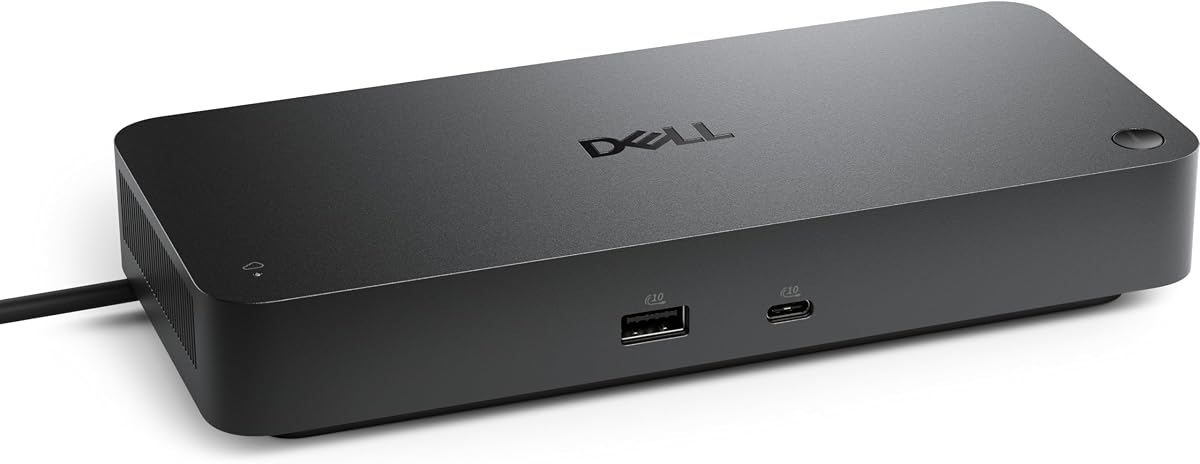
The Dell Pro Thunderbolt 4 Smart Dock SD25TB4 is built for managed offices, meeting rooms, and hybrid work environments. Its 4.2 rating accompanies support for up to four 4K monitors across HDMI 2.1, DisplayPort 1.4, USB-C, and Thunderbolt 4 outputs. It also provides 2.5Gb Ethernet, Wi-Fi management, and a compact ambidextrous enclosure.
We may earn a commission when you buy through this link, at no additional cost to you.
Power delivery reaches up to 130W for Dell systems and up to 96W for other supported hosts. Two Thunderbolt 4 data connections support high-speed peripherals, dual 4K video, and chaining of as many as six devices. These capabilities make it a natural extension for business laptops that already use Dell's USB-C ecosystem.
Its defining enterprise advantage is remote administration. Dell Console with Intel AMT can manage docks over Wi-Fi without the dock being attached to a computer. WPA3 encryption, PXE boot, MAC filtering, DMA protection, and secure-enclosure features add further layers suited to organizational IT. The product also uses 65% recycled plastic and 100% recycled packaging.
This dock is a strong choice for IT teams that value centralized management and four-monitor capacity more than native Thunderbolt 5 features. It can also serve individual users with Dell notebooks. Those needing the newest interface, maximum charging across non-Dell devices, or advanced storage integration should compare it with the newer Thunderbolt 5 alternatives in this guide.
Remote Wi-Fi administration through Dell Console and Intel AMT is unusual in a desktop dock. It helps IT teams diagnose and configure shared workstations without relying on a connected client machine.
The combination of HDMI, DisplayPort, USB-C, and Thunderbolt outputs supports up to four 4K monitors. That is useful for operations centers, trading desks, and offices where compact work areas must show more information.
We may earn a commission when you buy through this link, at no additional cost to you.
The Belkin 140W Thunderbolt 5 Dock combines a 4.8 rating with a polished 14-port feature set. It supports high-speed data transfer up to 80Gbps and 120Gbps Bandwidth Boost, up to 140W of host charging, 2.5Gb Ethernet, triple extended 4K monitors at 144Hz, and 8K output at 60Hz on suitable systems.
We may earn a commission when you buy through this link, at no additional cost to you.
Its port selection gives users flexibility for USB accessories, displays, networking, and storage without creating a large adapter collection. The dock can also connect as many as six Thunderbolt devices through the host, expanding storage, displays, and accessories with fewer direct connections to the laptop. That daisy-chain support is especially helpful for desks with several high-speed peripherals.
Belkin adds a Kensington lock and a six-point safety system covering over-voltage, overload, over-current, over-temperature, and short-circuit protection, along with fire-resistant materials. The package uses plastic-free packaging, and the product includes three-year coverage. On the other hand, there is no internal NVMe bay, so users requiring onboard high-speed scratch storage must add a separate enclosure.
This is an excellent all-around choice for a compatible modern laptop that needs charging, fast networking, multiple high-resolution screens, and expandable Thunderbolt peripherals. It lacks the specialized internal storage of the WAVLINK and UGREEN NVMe docks, but it delivers one of the most balanced and polished general-purpose designs. For a premium desk setup without specialized storage, it is an especially strong recommendation.
A single upstream Thunderbolt 5 connection can carry display signals, data, and host charging while the dock handles wired networking and peripherals. This reduces cable clutter while preserving access to high-speed expansion.
Support for up to three extended 4K monitors at 144Hz and 8K at 60Hz makes the dock appropriate for high-refresh productivity and creative environments. Exact output depends on the computer, operating system, cables, and monitor configuration.
The built-in safety system addresses common electrical risks, while the Kensington lock helps protect the dock in a shared office. These details make the dock feel particularly well suited to long-term professional deployment.
We may earn a commission when you buy through this link, at no additional cost to you.
The right Thunderbolt 5 Dock depends less on headline bandwidth than on your host computer, monitor layout, power requirements, networking speed, storage workflow, and operating-system restrictions. Review these factors before choosing a model.
Summary: verify port capability, operating-system rules, and display support before purchasing.
Summary: choose the dock that explicitly supports your monitor count, resolution, and refresh rate.
Summary: match host charging to the laptop and review shared peripheral power allocations.
Summary: prioritize the number of downstream Thunderbolt ports when chaining high-speed devices.
Summary: include an M.2 slot only if you need local storage, and verify SSD dimensions precisely.
Summary: choose 2.5Gb Ethernet for demanding network storage and fast card readers for media imports.
Summary: decide whether quiet fanless operation or active cooling under sustained load matters more.
Summary: add management and security only when they solve a real workplace or shared-desk concern.
Begin by checking your computer's Thunderbolt specification and reviewing the dock's compatibility chart. Connect the included or specified Thunderbolt 5 cable to the host, plug the dock into a suitable power outlet when its charging function is needed, and wait for the operating system to recognize the new interfaces. Install any current dock firmware and display software recommended by the manufacturer before arranging the final monitor layout.
Connect displays first using the connection type listed for your desired resolution and refresh rate, then add storage, Ethernet, card readers, audio, and USB accessories. High-resolution multi-monitor modes may require specific cables, DSC support, or active adapters. If image output is unstable, test one display at a time, confirm that the cable supports the intended mode, and review the host system's display limitations.
For the integrated M.2 models, power the dock down before inserting or removing an SSD, confirm that the drive meets the size and heatsink requirements, and secure it according to the manufacturer's instructions. Keep ventilation openings clear, avoid placing the dock on soft surfaces, and allow space around active fans. Periodically inspect cables and connectors, and do not insert damaged media or incompatible storage modules.
Usually, yes, because Thunderbolt 5 is backward compatible with Thunderbolt 4 devices and USB4 systems. The dock will operate at the capabilities supported by the host and its cables. You will not gain Thunderbolt 5's full bandwidth or highest display modes if the computer, cable, and operating system do not support them.
A certified Thunderbolt 5 cable is recommended for the full bandwidth and display capabilities of a native TB5 dock. Some listed accessories use shorter or different cable requirements, so check the package contents. A basic USB-C cable may carry power or USB data without providing the dock's complete Thunderbolt functionality.
Several models in this guide support triple-display configurations, but not every host can use them. Triple output commonly requires Windows 11 or later with Thunderbolt 5, while macOS support is frequently limited to two displays. Monitor resolution, refresh rate, operating system, and adapter requirements also affect the result.
Thunderbolt offers greater bandwidth and more flexible display and peripheral expansion than basic USB4. It is better suited to external NVMe storage, multiple high-resolution displays, and chained Thunderbolt devices. USB4 can still provide strong data performance, but maximum dock features will be constrained by the host, cable, and USB4 implementation.
Yes, when the dock is connected to suitable power and the upstream Thunderbolt connection supports host charging. Most native Thunderbolt 5 models in this guide provide up to 140W, while alternatives offer lower or higher limits. The actual charge rate depends on the laptop, power supply, workload, and docking firmware.
The WAVLINK 13-in-1 and UGREEN 17-port models stand out because they include an internal M.2 NVMe slot for fast local project media. For high-refresh, multi-screen editing, also consider the Belkin 140W model or the UGREEN 10-in-1. Verify storage dimensions, display modes, and host compatibility before choosing.
No. The internal storage bay is a connector for a compatible drive, and compatible NVMe SSDs must be purchased separately. Check the M-key, 2280 size, capacity, and heatsink-height requirements before purchasing a drive for the UGREEN or WAVLINK storage-equipped models.
The Lenovo ThinkPad Smart Dock offers cloud-based fleet management, while the Dell Pro Smart Dock supports remote administration through Dell Console and Intel AMT over Wi-Fi. Both are designed for centralized IT operations. Choose based on your organization's laptop fleet, management infrastructure, security policy, and display requirements.
The Belkin 140W Thunderbolt 5 Dock is the strongest general recommendation because it combines a high customer rating, 140W charging, triple 4K support, fast 2.5Gb Ethernet, broad data connectivity, daisy chaining, and thoughtful safety features. The WAVLINK 13-in-1 NVMe model is the premium choice for creators who want integrated high-speed scratch storage, while the UGREEN Maxidok 10-in-1 offers an excellent value-focused balance of silent construction, display expansion, and Thunderbolt connectivity.
Prioritize the features your workflow actually needs. A multi-display creative professional may need DSC, high refresh rates, fast card readers, and an NVMe slot, while an office user may value remote management, 2.5Gb networking, security, and dependable host charging. Check the Mac or Windows restrictions, required cables, monitor modes, and accessory exclusions before finalizing a choice.
Product ratings, firmware, compatibility charts, bundled items, and prices can change, so review the current listing before buying. Confirm that your computer supports the intended Thunderbolt generation and that the dock's maximum configuration matches your monitors and power adapter. With that due diligence, the right dock can create a cleaner, faster, and more adaptable workstation.