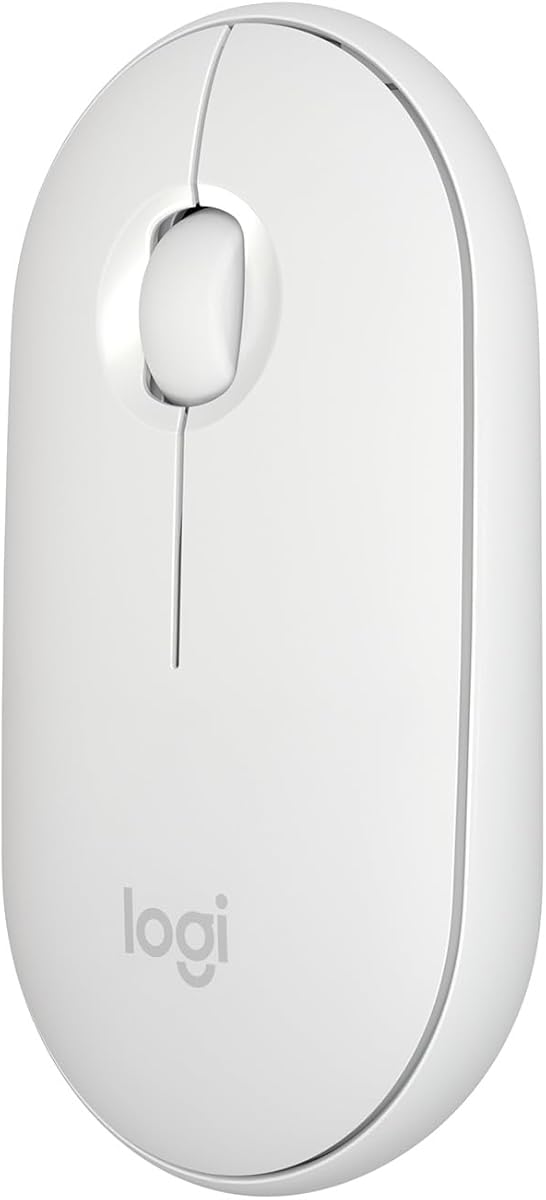
Logitech Slim Wireless Mouse for Mac
4.7Editor score
Slim Mac-oriented design
Bluetooth LE connectivity
Silent clicks and scrolling
Up to 18-month battery
Compare 10 top external mice for MacBook Neo, evaluating quiet clicks, portability, battery life, device switching, precision, and Mac compatibility.
An external mouse can transform a MacBook Neo setup by adding a larger pointer target, physical buttons, more consistent scrolling, and a more comfortable working position. The best choice depends on whether you prioritize silent operation, travel-ready portability, multi-device convenience, precise navigation, or long battery life.
This guide compares ten Bluetooth, wireless, and rechargeable external mice for MacBook Neo laptops. We evaluated their connection methods, supported devices, click noise, tracking, portability, power options, design, and platform compatibility, covering options for students, office workers, travelers, and creative professionals.
Each pick highlights a different reason to upgrade, from a slim everyday model to a feature-rich ergonomic mouse. Ratings and configurations can change over time, so check the latest product details and current pricing before making your final selection.
4.7Editor score

4.6Editor score

4.4Editor score
The comparison covers connection options, device support, noise reduction, portability, battery behavior, and the kinds of control each mouse provides.




The Logitech M240 Compact Silent is a straightforward travel mouse with a 4.4 rating and an emphasis on reduced noise. Its small, ambidextrous body should appeal to MacBook Neo users who want something more substantial than a trackpad without taking up much desk or bag space. Bluetooth pairing without a dongle keeps the setup uncomplicated.
We may earn a commission when you buy through this link, at no additional cost to you.
Its strongest feature is the claim of 90% reduced click sound while retaining a familiar clicking feel. That balance can be valuable in shared offices, libraries, classrooms, and video calls. The 10-meter connection range provides useful freedom, while support for macOS, Windows, Linux, ChromeOS, iPadOS, and Android makes the mouse adaptable to more than one device.
The main limitation is its simpler feature set. It does not offer the multi-device switching, programmable actions, high-resolution tracking, or horizontal scroll wheel found in more specialized options. Its 18-month battery estimate is also based on an energy-efficient auto-sleep feature, and users replacing the battery periodically may prefer a rechargeable mouse.
This is a strong choice for a student, frequent traveler, or quiet workspace user who values a small shape and dependable Bluetooth over advanced controls. For a MacBook Neo, it offers a restrained, color-coordinated appearance and straightforward operation. Choose the M240 when portability, silence, and simplicity matter more than extensive personalization.
The M240's reduced click noise makes it easier to work beside colleagues without distracting them. Its wheel also provides smooth everyday scrolling for documents, web pages, and creative applications.
The slim ambidextrous shell fits into smaller bags and supports either hand. It is best suited to users who want a conventional mouse that travels well rather than a full-size ergonomic model.
We may earn a commission when you buy through this link, at no additional cost to you.
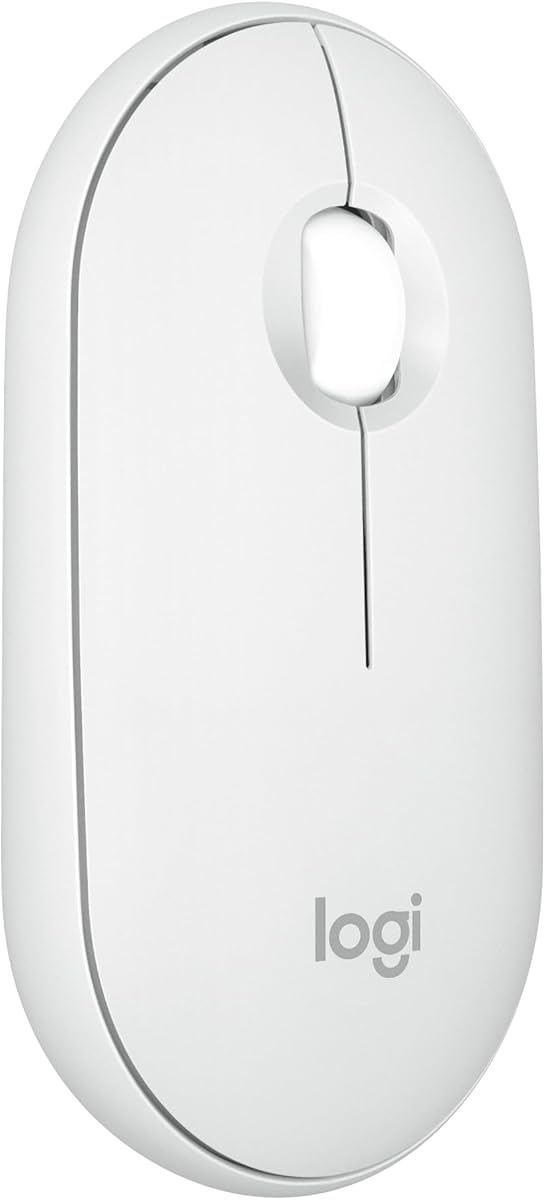
The Logitech M350s Pebble 2 combines minimalist styling with practical multi-device support, earning a 4.5 rating. Its rounded, slim shell is noticeably more refined than a basic office mouse, while the Tonal White finish should sit naturally beside a MacBook Neo. It supports Bluetooth connections to up to three devices across several operating systems.
We may earn a commission when you buy through this link, at no additional cost to you.
The Easy-Switch button makes moving between a MacBook, tablet, and another computer faster than reconnecting each time. The middle button can be personalized through the Logi Options+ app for application shortcuts, including frequently used communication and music services. Silent Touch technology reduces click noise by 90%, which is useful for open offices and shared study areas.
Battery life is listed at two years, with an included battery and an auto-sleep mode to reduce consumption. As with any estimate, actual runtime depends on activity and sleep settings. The mouse also supports the Logi Bolt receiver, although that receiver is not included, so buyers who prefer a receiver-based setup should account for that separately.
The M350s is a compelling all-rounder for someone who alternates among a MacBook Neo and other devices but still values a low-profile shape. It offers more flexibility than a single-device travel mouse without approaching the size or control density of an ergonomic productivity model. It is particularly well suited to minimalist workspaces.
Bluetooth connections to as many as three devices make this a practical choice for mixed-device workflows. The dedicated Easy-Switch control provides a more direct transition than changing operating-system settings.
The customizable middle button brings app shortcuts to a compact mouse. It is a modest but meaningful advantage for users who regularly open communication, music, or browser tools.
We may earn a commission when you buy through this link, at no additional cost to you.
The Logitech Mobi Fold is the most purpose-built travel option in this roundup, with a 4.2 rating and a distinctive foldable body. Unfolding it powers the mouse, while folding it turns it off, eliminating the need to search for a switch or worry about accidental activation inside a bag. It is designed for people who carry a MacBook Neo between locations.
We may earn a commission when you buy through this link, at no additional cost to you.
Despite its thin folded form, the Mobi Fold offers 4K DPI tracking and adaptive touch scrolling. It supports Bluetooth across Windows, macOS, ChromeOS, Android, and iPadOS, along with Swift Pair and Fast Pair certification. An Easy-Switch button allows movement among up to three devices, adding flexibility that many foldable travel mice lack.
Power comes from a rechargeable system that can run for up to a month on a full charge and deliver up to 22 hours after a one-minute charge. A USB-C cable is not included, so users should confirm they have a suitable cable available. The trade-off is that this polished portability comes at a higher outlay than conventional compact mice.
The Mobi Fold makes the most sense for frequent travelers, commuters, and hybrid workers who value pocketability above all else. It also suits users attracted to modern industrial design and quick charging. If your mouse mainly stays on a desk, a full-size ergonomic option may deliver more comfort, but for travel, this is one of the clearest choices.
The fold-flat construction protects the controls and makes the mouse easier to fit into a compact sleeve or pocket. Its physical power behavior also removes several common travel-system concerns.
The 4K tracking resolution and adaptive scrolling provide more capability than many similarly slim travel mice. It is useful for detailed work on compact surfaces as well as traditional desks.
We may earn a commission when you buy through this link, at no additional cost to you.
The Satechi Slim EX Wireless Mouse is the most versatile all-round choice here, carrying a 4.6 rating and a clean space-black design. It works with MacBook Neo users who want a single mouse to cover a Mac, Windows computer, tablet, or desktop. The included USB-C cable and two-year limited warranty also add a polished ownership experience.
We may earn a commission when you buy through this link, at no additional cost to you.
Its major advantage is flexible connectivity. Two Bluetooth channels and a 2.4 GHz USB-C receiver can be switched without re-pairing, while the machined metal wheel supports accurate scrolling. The shell is made from anodized aluminum rather than conventional plastic, giving the mouse a more substantial desk presence and a coordinated appearance beside a laptop.
A removable rechargeable battery can provide up to three months of continuous use, with more than a year in sleep mode. That flexibility is useful because the battery can be replaced, although it makes the mouse slightly less minimalist than models with a sealed rechargeable cell. It also has fewer dedicated controls than the MX Master 4 and no specialized haptics.
The Slim EX suits people who value broad device compatibility, refined materials, and dependable switching without needing a large ergonomic body. It is a particularly sensible choice for a MacBook Neo desk where accessories from several companies share the same workspace. Choose it when connectivity options and understated construction matter most.
Two Bluetooth channels and a 2.4 GHz receiver cover different usage patterns. Bluetooth keeps the desk uncluttered, while the receiver offers an alternative for environments where a paired wireless connection is preferable.
The anodized shell and precision-machined wheel create a more premium appearance and feel. The removable rechargeable battery supports convenient charging and extended everyday use.
We may earn a commission when you buy through this link, at no additional cost to you.
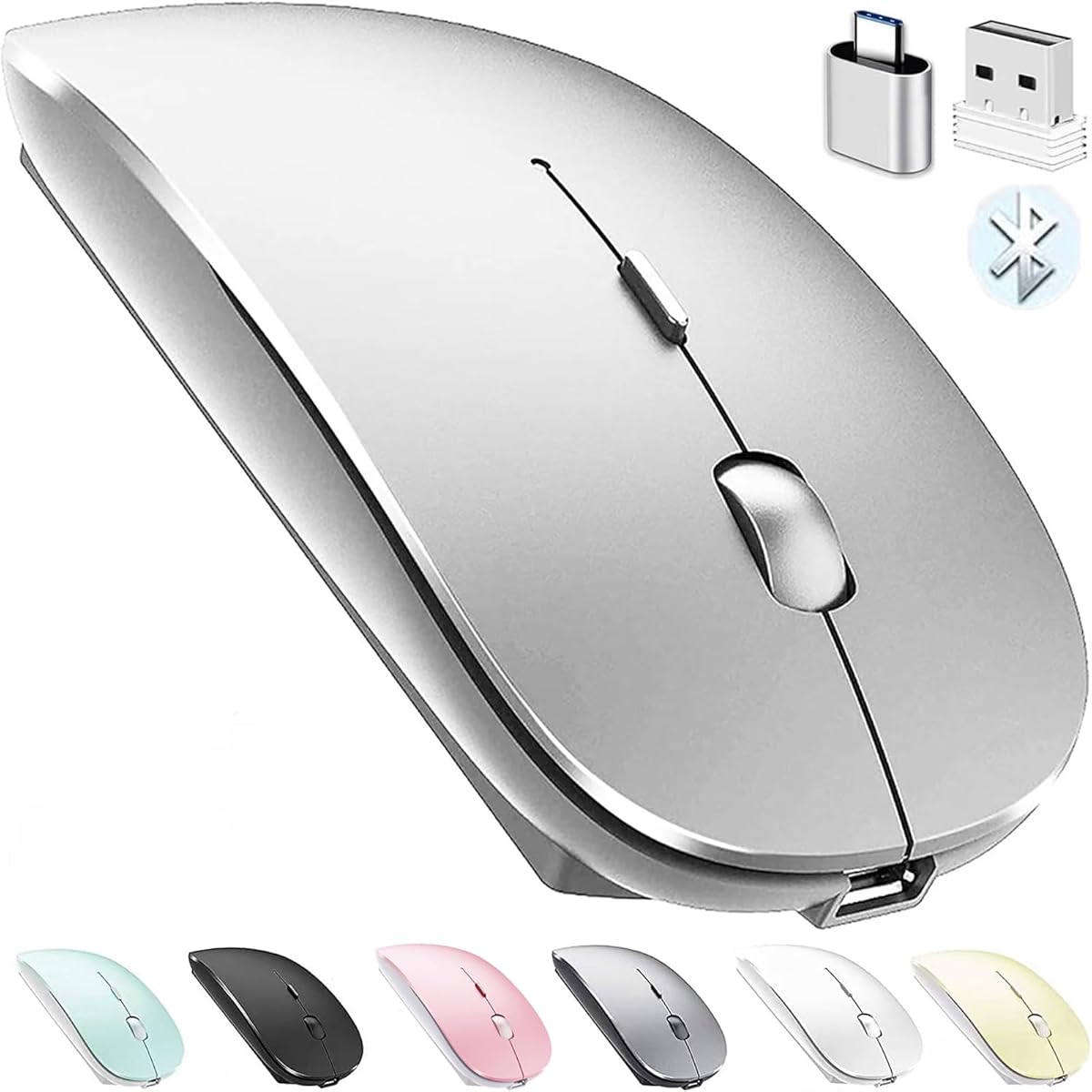
This generic wireless mouse for MacBook and other systems offers a 4.3 rating and a broad range of connection choices. It supports Bluetooth 5.2, Bluetooth 3.0, and a 2.4 GHz USB receiver, with a USB-C adapter listed for the receiver mode. That flexibility makes it useful for a MacBook Neo as well as Windows, Linux, ChromeOS, iPadOS, and other devices.
We may earn a commission when you buy through this link, at no additional cost to you.
Three adjustable DPI levels—800, 1200, and 1600—let users change pointer sensitivity according to the task. The 1200 setting is presented as an office-oriented middle ground, while the other levels can suit slower movement or faster on-screen navigation. A mute design helps reduce click distraction, and automatic sleep activates after eight minutes of inactivity.
Its practical advantages come with some compromises. The product uses a rechargeable lithium-polymer battery, but the supplied information does not describe a USB-C charging interface, and the design lacks the more refined metal construction or app-based controls found among higher-end picks. The broad compatibility claims also make the listing more generic than a Mac-specific model.
Choose this mouse if adjustable sensitivity, multiple wireless modes, and broad operating-system support are your priorities. It is a sensible budget-oriented option for offices, school desks, and travel, although buyers who rely on shortcuts or premium materials may prefer a more specialized model.
The three DPI options allow the pointer behavior to be adjusted for different workspaces and preferences. This is useful for users moving between a laptop, an external display, and less precise surfaces.
Bluetooth versions and a 2.4 GHz receiver allow the mouse to adapt to different computers. The included adapter broadens compatibility with modern USB-C-oriented laptops.
We may earn a commission when you buy through this link, at no additional cost to you.
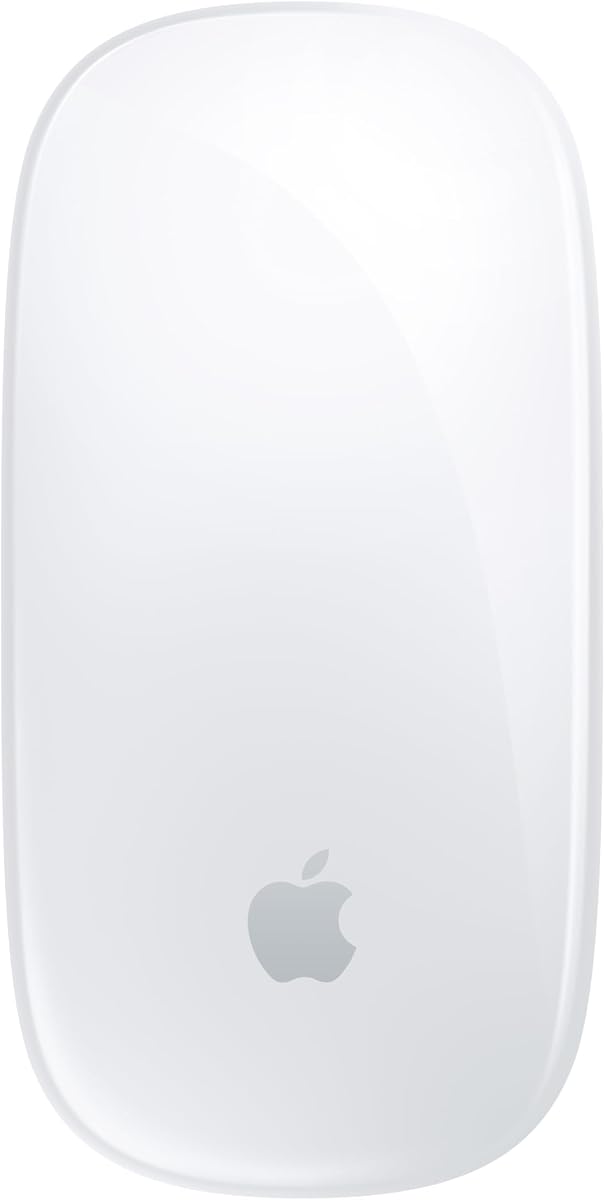
The Apple Magic Mouse is the most macOS-focused conventional mouse in the list, with a 4.4 rating and a familiar low-profile shape. It pairs automatically with a Mac and is designed to feel at home beside Apple hardware, including a MacBook Neo. The defining interface is its Multi-Touch surface, which supports gestures such as swiping between web pages and scrolling through documents.
We may earn a commission when you buy through this link, at no additional cost to you.
Its rechargeable battery can power the mouse for about a month or more between charges. The included woven USB-C cable handles both charging and pairing when connected to a compatible Mac, so the initial setup should be straightforward. The optimized foot design is intended to glide smoothly over a desk without the bulk of a full-size productivity mouse.
Physical controls are limited, however, and gesture-heavy operation can take time to master. The charging port's location may also make cable use less convenient than it is on mice with a bottom or side charging connector. Compared with the Satechi Slim EX, Logitech POP, and MX Master 4, it offers fewer conventional buttons and less device-switching flexibility.
This model is best for a Mac user who values automatic pairing, an uncluttered appearance, and touch-based navigation. It is less suitable for someone who needs many programmable buttons, a horizontal wheel, or rapid switching among several systems. Within a MacBook Neo setup, its strongest advantages are familiarity and visual integration.
The Multi-Touch surface supports common navigation gestures without requiring a separate trackpad. Users can swipe through pages or scroll through long documents using direct finger movement.
Automatic Mac pairing and the included woven USB-C cable keep setup direct. A rechargeable battery also avoids the routine replacement cycle associated with disposable battery mice.
We may earn a commission when you buy through this link, at no additional cost to you.
The Logitech POP Mouse combines bold, modern styling with useful customization, earning a 4.6 rating. Its compact, contoured body is designed to fit comfortably in a palm while remaining portable enough for a bag. The Mist finish gives a MacBook Neo setup a softer, distinctive alternative to the many conventional white office mice.
We may earn a commission when you buy through this link, at no additional cost to you.
Action Buttons and the Logi Options+ app can create shortcuts for work, social, entertainment, and AI tools. The mouse can also hold Bluetooth connections to up to three devices and move among them with an Easy-Switch button. That combination of expressive design and practical controls is unusual in such a small form factor.
Silent Touch technology is advertised to remove 90% of click noise, making the mouse suitable for shared environments. A stated two-year battery life and auto-sleep mode reduce maintenance, with one AA battery included. On the other hand, users who need a side wheel, extensive scrolling controls, or a large hand rest may find the POP less accommodating than a full ergonomic model.
The POP is a strong recommendation for a MacBook Neo user who wants a portable mouse with more personality and customization than a basic travel option. It is also suitable for people moving regularly between a laptop and tablet. Buy it when quiet operation, attractive design, and programmable actions matter more than maximum physical control density.
Action Buttons turn otherwise empty areas of the mouse shell into shortcuts for frequently used applications. Users can streamline workflows without moving to the MacBook Neo keyboard.
The POP's modern shell stands apart from generic mouse designs, while Silent Touch technology limits distraction. This makes it a good fit for style-conscious users in shared workspaces.
We may earn a commission when you buy through this link, at no additional cost to you.
The Logitech Slim Wireless Mouse for Mac has the highest listed rating in the group at 4.7, and it remains one of the most focused everyday options. Its clean white body, rounded corners, and compact proportions complement a MacBook Neo without the visual bulk of a large productivity mouse. It is also light and small enough to move easily between a home and office.
We may earn a commission when you buy through this link, at no additional cost to you.
The mouse connects using energy-efficient Bluetooth LE and provides a reliable range of up to 10 meters, subject to environmental and computing conditions. It tracks accurately on tables and softer surfaces such as bed covers, offering some flexibility when a conventional desk is unavailable. The shell is designed to fit naturally in the palm, with smooth rounded sides for a comfortable grip.
Logitech states that the clicks produce about 90% less noise than the M170 reference, and the wide rubber scroll wheel also operates quietly. The estimated 18-month battery life and automatic sleep mode add convenience, although the model relies on replaceable batteries rather than USB-C charging. It does not offer multi-device switching or app-based shortcut controls.
This is the best value pick for most people seeking a dedicated MacBook Neo mouse. It delivers a polished design, quiet operation, reliable tracking, and exceptional portability without the complexity of an advanced ergonomic model. Choose it for everyday browsing, office work, and travel, especially if a simple two-button mouse fits your workflow.
The slim white housing and restrained button layout fit neatly beside a MacBook Neo. Its shape offers a familiar mouse experience while remaining noticeably smaller and lighter than a full-size desktop model.
Both the click mechanism and rubber scroll wheel are designed for reduced sound. That makes the mouse suitable for libraries, cafes, offices, and calls where ordinary clicking could interrupt others.
We may earn a commission when you buy through this link, at no additional cost to you.
The Logitech MX Master 4 for Mac is the feature-rich premium choice, with a 4.4 rating and a much broader control set than a compact travel mouse. Its space-black finish and matching Apple-oriented design suit a professional MacBook Neo workspace, while the ergonomic shape is intended for long sessions and detailed work.
We may earn a commission when you buy through this link, at no additional cost to you.
The standout feature is the Haptic Sense Panel, which can provide customizable feedback for selected actions, shortcuts, and notifications. The Actions Ring presents frequently used filters, adjustments, and controls in an app-sensitive overlay. Users can also rely on a thumb wheel for horizontal movement and the MagSpeed wheel, which is advertised to scroll as many as 1,000 lines per second and stop precisely on a pixel.
Quiet clicks reduce distraction by 90% without abandoning a conventional feel, and USB-C charging allows the mouse to operate while connected. Logi Options+ is designed for macOS, iPadOS, and Windows workflows. The tradeoff is size: this is not a pocketable travel mouse, and the USB-C charging cable is not included. It is also overkill for users who only need basic pointing and clicking.
Choose the MX Master 4 when productivity features, ergonomics, precise scrolling, and extensive customization justify a full-size premium mouse. It is particularly suitable for software developers, designers, analysts, and heavy multitasking users who can take advantage of its Action Ring, haptics, and horizontal wheel.
The app-aware Actions Ring places relevant commands near the pointer, reducing the need to hunt through menus. Customizable haptics add another layer of feedback without replacing conventional button control.
Fast MagSpeed scrolling and a separate thumb wheel support long documents, wide timelines, and spreadsheet navigation. These features are more useful for sustained productivity than quick web browsing.
We may earn a commission when you buy through this link, at no additional cost to you.
The Satechi M1 Wireless is a polished, conventional mouse with a 4.4 rating and a space-gray aluminum finish. It offers a clean alternative to the rounded plastic designs common in this category, and its understated styling works particularly well beside a MacBook Neo and other metal-accented accessories.
We may earn a commission when you buy through this link, at no additional cost to you.
Bluetooth 4.2 provides a stable connection within a stated range of 32 feet, while a 1200 DPI optical sensor supports accurate tracking and scrolling. The built-in lithium-ion battery recharges through USB-C, and a USB-C cable is included. This removes disposable batteries and keeps the mouse ready for regular work sessions.
The sculpted shape is designed to sit in the palm and is described as suitable for both left- and right-handed users. It does not provide multi-device switching, programmable actions, a horizontal wheel, or advanced haptics. Satechi also notes that it is not recommended for 2011 and earlier Mac devices, so buyers with an unusually old Mac setup should verify compatibility before purchasing.
The M1 is best for someone who prefers refined materials and a rechargeable, full-size mouse without paying for a complex productivity model. It is well suited to a dedicated MacBook Neo desk and general office or creative work. Choose it over the Slim EX when one primary computer is the main concern and a simple aluminum design is enough.
The integrated lithium-ion battery and included USB-C cable simplify routine charging. Wireless operation then continues without a receiver taking up a USB-C port.
The 1200 DPI sensor provides a balanced level of precision for general office use, document editing, and browsing. It avoids the complexity of a gaming-style control panel while remaining responsive.
We may earn a commission when you buy through this link, at no additional cost to you.
The most useful external mouse is one that complements your MacBook Neo workflow, hand size, workspace, and device ecosystem. Connectivity, shape, silence, controls, and battery behavior deserve the most attention.
Bluetooth is the cleanest option for a MacBook Neo because it avoids occupying a USB-C port and usually requires no receiver. The Logitech M240, M350s, POP, Slim, and MX Master 4, along with the Apple Magic Mouse and Satechi models, all support Bluetooth in different forms. If you regularly work across Bluetooth and legacy receiver-based setups, the Satechi Slim EX or the adjustable-DPI wireless mouse offers both connection styles.
For most MacBook Neo owners, prioritize straightforward Bluetooth pairing, a reliable connection range, and broad macOS support. Consider a receiver only when you need a specific 2.4 GHz workflow or want an alternative to Bluetooth interference.
A compact mouse is easier to carry, while a full-size ergonomic shape generally supports a broader grip and more controls. The Slim Wireless Mouse for Mac, M240, and M350s are discreet choices for travel. The Satechi M1 has a more conventional full-size profile, while the MX Master 4 offers the most substantial hand support and specialized controls.
Choose based on grip preference and available desk space rather than appearance alone. A smaller mouse may be comfortable for fingertip control, whereas a larger, more sculpted body can reduce fatigue during long sessions.
Noise reduction can matter in offices, libraries, classrooms, cafés, and video calls. The Logitech M240, M350s, POP, Slim, and MX Master 4 advertise 90% less click noise. The Mobi Fold and the adjustable-DPI wireless mouse also emphasize quiet operation, although the supplied specifications do not provide the same numerical reduction claim.
Silent clicks do not make every mouse completely inaudible, and perceived noise can vary by surface and sensitivity. If shared-space use is a priority, verify the product's noise specifications and test the feel on the surface you use most.
Users who alternate between a MacBook Neo, desktop, and tablet benefit from quick device switching. The M350s, Mobi Fold, Satechi Slim EX, and POP can connect to or control multiple devices. The Slim EX stands out by combining two Bluetooth channels with a 2.4 GHz receiver and allowing transitions without re-pairing.
A dedicated Easy-Switch button or clear channel control saves time compared with manually disconnecting and reconnecting. Multi-device support is valuable, but it is unnecessary if the mouse will only accompany one laptop.
Replaceable-battery models such as the M240, M350s, POP, and Slim prioritize low maintenance and long advertised intervals. The Satechi Slim EX uses a removable rechargeable battery, while the Magic Mouse, Mobi Fold, MX Master 4, and Satechi M1 use integrated rechargeable systems with USB-C charging. Rechargeable models are convenient at a desk but require access to a cable.
Long battery claims depend on usage and sleep behavior, so treat the published interval as a guide rather than a guarantee. Check whether a charging cable is included, particularly for the Mobi Fold and MX Master 4.
Standard scrolling is enough for everyday browsing, but power users may benefit from fast wheel movement, horizontal scrolling, or adjustable pointer sensitivity. The MX Master 4 provides a thumb wheel and high-speed MagSpeed scrolling. The Mobi Fold offers 4K tracking and adaptive scrolling, while the adjustable-DPI mouse provides 800, 1200, and 1600 settings.
Match the controls to your work. Detailed design, spreadsheet, and timeline tasks can justify advanced scrolling, while casual document use rarely requires a dense control layout.
Customization can shorten repetitive workflows. The M350s allows its middle button to be personalized, the POP provides Action Buttons, and the MX Master 4 adds an app-aware Actions Ring and haptic feedback. The Apple Magic Mouse takes a different approach with gesture-based Multi-Touch controls rather than numerous physical buttons.
Software-enabled features usually require compatible operating systems, permissions, and occasional updates. Confirm that the available controls meet your needs; users who dislike configuration software may prefer a simple two-button mouse.
If the mouse travels with the MacBook Neo, size and packaging become important. The M240, M350s, and Slim fit into small bags, while the Mobi Fold compresses into an exceptionally thin package and uses folding as its power control. Pockets, sleeves, and shared workspaces benefit from a smaller footprint.
Portable mice usually offer fewer physical controls and less hand support than full-size models. Choose a slim model for travel and keep a larger ergonomic mouse at a fixed desk if both use cases are equally important.
Begin by fully charging a rechargeable mouse or installing the specified batteries, then turn it on. Open the Bluetooth section of your MacBook Neo's settings, select the mouse from the available devices, and complete pairing. If the mouse includes multiple channels or a receiver, choose the connection method that matches the computer you want to control first.
After pairing, adjust the pointer speed and scrolling behavior in macOS System Settings. If your mouse has programmable buttons, install the relevant configuration app, review permissions, and assign shortcuts carefully. Avoid assigning a button to a destructive action until you are comfortable with the setup. Update the mouse firmware and software when updates are offered.
Keep the sensor clean and use the mouse on a suitable surface to maintain tracking accuracy. Protect the charging port, remove batteries from long-term storage devices, and avoid moisture or extreme heat. For a foldable model, fold it before placing it in a bag so it powers down, and for multi-device mice, use the switching control only after confirming the correct channel is active.
Most of the listed models connect directly over Bluetooth and do not require a receiver. Bluetooth also leaves the MacBook Neo's USB-C ports available for other accessories. Choose a receiver-equipped model only if you want a dedicated 2.4 GHz connection or need to switch between Bluetooth and receiver modes regularly.
The Logitech M240, M350s, POP, Slim, and MX Master 4 all advertise 90% less click noise. The Slim Wireless Mouse for Mac is especially compact and lightweight, while the M350s adds multi-device switching. Noise perception still depends partly on the desk surface, so softer materials can further reduce sound.
Choose a compact mouse if your MacBook Neo travels frequently and desk space is limited. The M240, M350s, Slim, and especially the foldable Mobi Fold prioritize portability. Choose a larger ergonomic mouse such as the MX Master 4 for long stationary sessions, extensive controls, and more substantial hand support.
Yes, if the selected mouse supports multiple devices. The Logitech M350s, Mobi Fold, POP, and Satechi Slim EX can control up to three devices, with Easy-Switch or channel controls for changing connections. The Slim EX also includes a 2.4 GHz USB-C receiver option for greater connection flexibility.
Silent buttons usually reduce the sound of the main click, but they do not mean the mouse produces no noise whatsoever. Scroll-wheel sound, movement across the surface, and the feel of a click can still be noticeable. Claims such as 90% less noise should be understood as a reduction rather than complete silence.
Rechargeable mice are convenient for frequent desk use because they can be charged and reused, while battery models are convenient when you want minimal charging downtime. Be sure to check whether a USB-C cable is included. The Mobi Fold and MX Master 4 require a suitable cable for charging but do not include one according to the supplied information.
A Mac-specific model may offer tighter visual coordination, automatic pairing, gestures, or dedicated macOS configuration, but Bluetooth mice from other brands can also work well. The general-purpose Satechi and Logitech options provide broad platform support. Consider native gestures and app integration more important than the Mac label alone.
Most users will be satisfied with a standard pointer speed, but adjustable DPI can help across different displays and surfaces. The adjustable-DPI model in this guide offers 800, 1200, and 1600 levels, while the Mobi Fold provides higher-resolution tracking. Try the mouse on your actual work surface and adjust the macOS pointer speed before making a final choice.
The Logitech Slim Wireless Mouse for Mac stands out as the best value option, pairing a 4.7 rating with a slim profile, quiet operation, and a long advertised battery interval. The Satechi Slim EX is the most versatile all-rounder, while the Logitech MX Master 4 for Mac is the premium choice for users who want extensive controls, haptics, and high-speed navigation.
Most buyers should prioritize connection reliability, comfortable hand fit, and the level of noise acceptable in their regular environment. Add multi-device switching when moving among a laptop, tablet, and desktop; add fast scrolling and programmable buttons only when productivity tasks will genuinely benefit from them.
Ratings, configurations, availability, and pricing can change, so confirm the latest listing details and current cost before purchasing. In every case, the final decision should reflect how you work, where you use the MacBook Neo, and which controls you will use often enough to justify added size or complexity.