
CENMATE Aluminum 4 Bay
4.3Editor score
Four SATA drive bays
USB-A and USB-C connectivity
Hot-swappable tool-free design
A JBOD enclosure combines multiple storage drives into one external or network-attached system without requiring users to configure RAID. The right model can simplify backups, expand a NAS, support media libraries, or provide direct access to several hard drives, but bay count, controller features, cooling, and connection standards vary widely.
We compared ten multi-bay enclosures by examining capacity, RAID or JBOD flexibility, USB interface speed, drive compatibility, hot-swapping, cooling, operating-system support, and physical design. The list covers direct-attached storage, hardware-RAID models, a QNAP JBOD expansion unit, and a hybrid enclosure that adds M.2 NVMe bays.
Each review explains who benefits most from the design and where its trade-offs appear. The TerraMaster D4-320 stands out for a balanced feature set, while QNAP, ORICO, SABRENT, and other models target distinct workflows. Product specifications and availability can change, so verify current details before purchasing.
4.3Editor score

4.2Editor score
4.1Editor score
As an Amazon Associate we earn from qualifying purchases.
The comparison below highlights the major differences among the ten enclosures, including supported drive sizes, maximum stated capacity, connection speed, and RAID or expansion capabilities.




The TERRAMASTER D4-320 is a four-bay direct-attached storage enclosure that combines a capable 10Gbps interface with an unusually polished set of maintenance features. It receives a 4.2 rating and is diskless, so the enclosure does not arrive with hard drives. Its defining strength is the balance between storage capacity, transfer capability, drive accessibility, and physical thermal management.
We may earn a commission when you buy through this link, at no additional cost to you.
The enclosure supports 2.5-inch and 3.5-inch SATA hard drives, 2.5-inch SATA SSDs, and individual drives as large as 30TB, producing a stated maximum of 120TB across four bays. USB 3.2 Gen2 can theoretically reach 10Gbps, while the supplied performance figures reach 1,016MB/s for a combined four-drive read and write workload. A single SATA SSD can read at up to 510MB/s. These results depend on the host connection, drives, workload, and file configuration.
Its tool-free push-lock trays make installation and replacement straightforward, and hot swapping allows a drive to be exchanged without powering down the unit. A temperature-controlled fan, vibration damping, and sound-absorbing panels improve operating acoustics, with standby noise listed below 21dB(A). The trade-off is that this is a DAS without RAID, so users wanting striping, mirroring, or parity must provide that functionality elsewhere.
This enclosure is a strong recommendation for creative professionals, IT administrators, and home users who want one dependable external system for several large SATA drives. It particularly suits people who prioritize straightforward access, broad compatibility, and fast transfers over built-in redundancy. Confirm that your computer supplies the required USB bandwidth and that your backup strategy does not depend on RAID.
Users who require a NAS, software RAID, or a rack-mounted installation should examine one of the more specialized alternatives. Within desktop four-bay direct-attached storage, however, the D4-320 offers one of the strongest combinations of capacity and everyday convenience.
The 10Gbps USB 3.2 Gen2 interface gives the D4-320 ample headroom for large media libraries, project files, and backups. It also supports USB Type-C connections across common USB and Thunderbolt interfaces, making it easier to use with contemporary computers.
Hot-swappable, tool-free trays reduce the effort required to install or replace storage. The push-lock design helps secure each drive after insertion, while individual access makes a failing or inactive disk easier to manage.
We may earn a commission when you buy through this link, at no additional cost to you.
The CENMATE Aluminum 4 Bay is a straightforward DAS enclosure for bringing several SATA drives online through one computer. Its 4.3 rating reflects a generally capable design with a 5Gbps interface, broad platform support, and accessible drive bays. It is well suited to users who need affordable bulk storage without a complicated setup process.
We may earn a commission when you buy through this link, at no additional cost to you.
Each bay accepts a 2.5-inch or 3.5-inch SATA hard drive or SSD, and the stated capacity reaches 80TB with four 20TB drives. The included USB-A and USB-C cables support connections to Windows, macOS, and Linux systems, while UASP can improve throughput over compatible USB 3.0 setups. Plug-and-play operation means there is no need to hunt for a separate driver before basic use.
Aluminum-alloy construction helps with heat dissipation, and the built-in fan provides active cooling when several hard drives operate simultaneously. The significant trade-off is acoustic: the manufacturer states that fan noise is around 40 to 50 decibels, which may be noticeable in a quiet office or home workspace. The enclosure also lacks RAID, so all data is presented through a direct-attached arrangement rather than a striped, mirrored, or parity-protected volume.
The recommendation is strongest for users who want a compact four-bay external drive pool for documents, backups, media, or offline archival storage. Install the enclosure away from a recording workspace if low noise matters, and use a separate backup destination because a multi-bay DAS is not automatically a resilient backup system.
For buyers prioritizing a 10Gbps connection, quieter operation, or larger stated drive compatibility, the TERRAMASTER offers a more advanced feature set. CENMATE remains a sensible choice when straightforward access and fundamental multi-drive functionality are the priorities.
Plug-and-play support for Windows, macOS, and Linux makes this enclosure practical in mixed environments. Dual cable options also reduce the need for an adapter when moving between desktop and laptop systems.
The aluminum shell and built-in fan help manage heat from multiple spinning drives. Buyers who are highly sensitive to sound should position the enclosure away from their primary seating area.
We may earn a commission when you buy through this link, at no additional cost to you.
The IO CREST 8-Bay is built for users who need more drive positions than a compact four-bay model but do not require a ten-bay premium enclosure. It has a 4.0 rating and supports 2.5-inch and 3.5-inch SATA drives from major manufacturers. The design emphasizes independent drive control and a smart cooling fan.
We may earn a commission when you buy through this link, at no additional cost to you.
Up to eight SATA hard drives can be connected, with stated support for drives as large as 24TB each. Its USB 3.0 connection supports 5Gbps, along with UASP and SATA I, II, and III devices. One especially useful feature is the independent power switch for each bay, allowing an unused or parked drive to remain off rather than spinning continuously.
A built-in thermal sensor supports automatic and manual fan operation, with three fan-speed levels available to the user. The steel housing and quiet fan are intended to dissipate heat while keeping acoustic output manageable. As a direct-attached device without RAID or NAS capabilities, it works best for storage consolidation, media access, local backups, and other workflows where the host computer manages the disks.
This model makes sense for users who are gradually accumulating drives or want to add storage without replacing a complete enclosure every few years. It may also appeal to administrators who want granular control over which drives receive power. Those expecting mirrored, striped, or parity-protected storage will need a hardware-RAID alternative.
The IO CREST offers excellent bay-count flexibility at a more modest interface speed. It is a compelling option when power management and future expansion matter more than maximum transfer throughput or premium metal construction.
Eight drive positions provide room to build capacity in stages rather than replacing the enclosure every time a storage target fills. The stated 24TB-per-drive support also accommodates many current high-capacity SATA hard drives.
Per-bay power switches can reduce unnecessary activity from drives that are not being accessed. The thermal sensor and three fan modes add useful control for balancing cooling requirements against operating noise.
We may earn a commission when you buy through this link, at no additional cost to you.
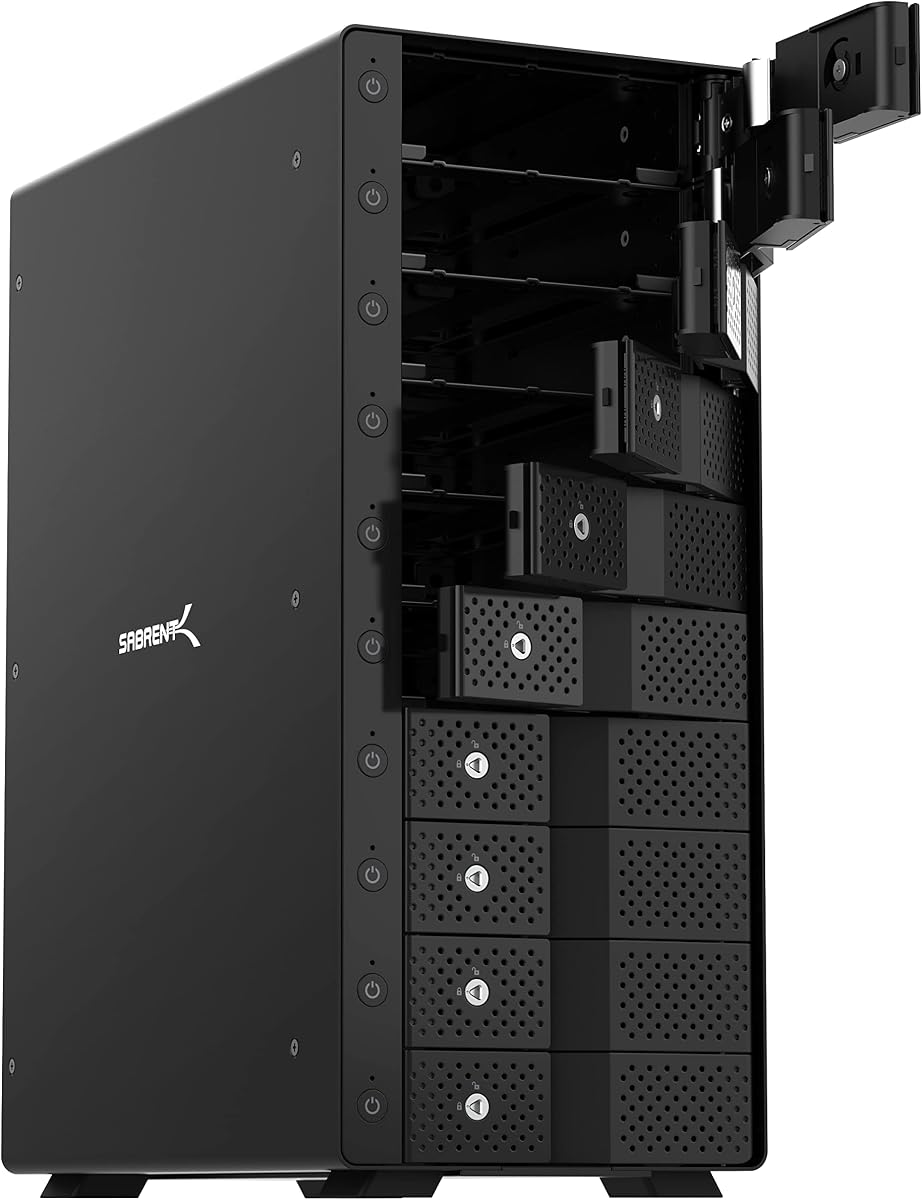
The SABRENT DS-UCTB is the premium desktop choice in this roundup, offering ten drive bays, a 10Gbps USB-C interface, and extensive per-drive management. Its 4.1 rating reflects a capable high-capacity system. It is designed for users who need a large amount of direct-attached storage but prefer individual drive control over a single aggregated volume.
We may earn a commission when you buy through this link, at no additional cost to you.
The enclosure accepts ten 3.5-inch SATA hard drives, with up to 20TB per bay and a stated 200TB total. An ASMedia controller manages the bays independently, and the USB 3.2 Gen2 Type-C connection reaches 10Gbps when paired with a suitable host port. Included USB-C-to-C and USB-C-to-A cables improve setup flexibility, while backward compatibility allows use with older USB connections.
Tray-less hot-swapping makes drive replacement fast, and each bay has its own power switch and status LED. A master switch controls the enclosure as a whole, while a locking key and Kensington slot add physical security. Two 120mm fans move air through the rigid aluminum body, helping the enclosure manage the sustained heat generated by ten hard drives.
The main limitation is physical size: ten 3.5-inch bays require considerably more desk space than a four-bay model. The unit also fits 3.5-inch drives primarily, while 2.5-inch SSD or HDD use requires the separately sold SABRENT BK-PCBS adapter. It is not a RAID enclosure, so it should not be mistaken for one.
The DS-UCTB is recommended for backup operators, media professionals, and offices that maintain many individual drives. Its per-bay controls and 10Gbps connection make it particularly appealing when fast replacement and selective power management are central to the workflow.
The ten-bay design allows users to combine different drive capacities and add storage gradually. Independent mounting is useful when one drive contains an active project while another holds archival material.
A locking key and Kensington slot help protect an unattended installation. The aluminum body and dual 120mm fans provide a more robust cooling approach than smaller enclosures generally can offer.
We may earn a commission when you buy through this link, at no additional cost to you.
The QNAP TR-004 is a four-bay USB Type-C DAS with a key distinction: its hardware RAID controller supports RAID 0, RAID 1, RAID 5, JBOD, and individual disks. It carries a 4.2 rating and is aimed at users who want QNAP-oriented expansion alongside more traditional direct-attached workflows.
We may earn a commission when you buy through this link, at no additional cost to you.
The enclosure holds four 3.5-inch SATA drives and connects to Windows, macOS, and Linux computers over USB Type-C. It can serve as external storage for NAS backup, expand the capacity of a compatible QNAP NAS, or operate directly as a four-drive external system. The included USB Type-C-to-Type-A cable broadens connection options.
Hardware RAID is valuable because configurations can remain available when the enclosure is attached directly to a computer, rather than depending entirely on software running in the host OS. Lockable bays add physical protection, and individual-disk mode provides flexibility for tasks that do not need an array. These capabilities distinguish the TR-004 from ordinary four-bay direct-attached docks.
The limitations are important. The TR-004 cannot install NAS applications, its storage cannot be combined into a connected NAS pool, and it can only be used as an individual storage pool or volume. Some older QNAP NAS models are unsupported, as are NAS systems that cannot update to the required QTS version. Migrated data may not be recognized when moving it to or from a NAS or another device.
The TR-004 is best for a QNAP user who explicitly wants hardware RAID or a dedicated backup target. It is less attractive for those expecting the enclosure to become a full NAS or to merge transparently into an existing QNAP storage pool.
The hardware controller can expose RAID 0, RAID 1, RAID 5, JBOD, or individual disks without requiring the attached computer to assemble the array. This is useful for backup targets and portable working environments.
The TR-004 works as external storage for compatible QNAP NAS backup and capacity-expansion tasks. It is not a general-purpose NAS, and its pool cannot be merged into the connected NAS's own storage.
We may earn a commission when you buy through this link, at no additional cost to you.
The QNAP TL-R1200C-RP is a rackmount JBOD enclosure intended for QNAP NAS expansion and other high-capacity storage environments. It has a 4.1 rating and differs from desktop models by offering twelve 3.5-inch SATA 6Gb/s drive bays, a 10Gbps USB Type-C connection, and a redundant 250W power supply.
We may earn a commission when you buy through this link, at no additional cost to you.
The enclosure can expand storage for compatible QNAP NAS systems, Windows computers, and servers. Twelve drive positions provide a high-density way to add capacity without occupying a desk. The USB 3.2 Gen2 Type-C interface offers a faster path than 5Gbps alternatives, while the redundant power supply is a meaningful reliability feature in an unattended server environment.
Its rackmount format is the central benefit and central constraint. A standard home desk or media cabinet may not offer the physical space, rails, airflow, and power arrangements required for installation. Buyers also need a compatible QNAP model and must understand that a JBOD is a storage-expansion mechanism rather than a general-purpose device for combining arrays with a host NAS.
The recommendation is aimed at administrators, small businesses, studios, and advanced enthusiasts operating a rack-based QNAP environment. For those users, the twelve bays and redundant power supply can justify the specialized format. For home users, a desktop enclosure will generally be easier to install and more appropriate for occasional access.
The TL-R1200C-RP is not a general consumer upgrade for an arbitrary computer. It is a specialized expansion component for people who already have infrastructure that supports rack-mounted storage and high-capacity workflows.
Twelve drive bays allow an administrator to consolidate substantial storage into a single rack enclosure. This is especially useful for backup repositories, media archives, and surveillance-adjacent storage pools.
The redundant 250W power supply is appropriate for environments where downtime and manual monitoring are difficult. The enclosure's 10Gbps Type-C connection also provides suitable bandwidth for multi-drive storage tasks.
We may earn a commission when you buy through this link, at no additional cost to you.
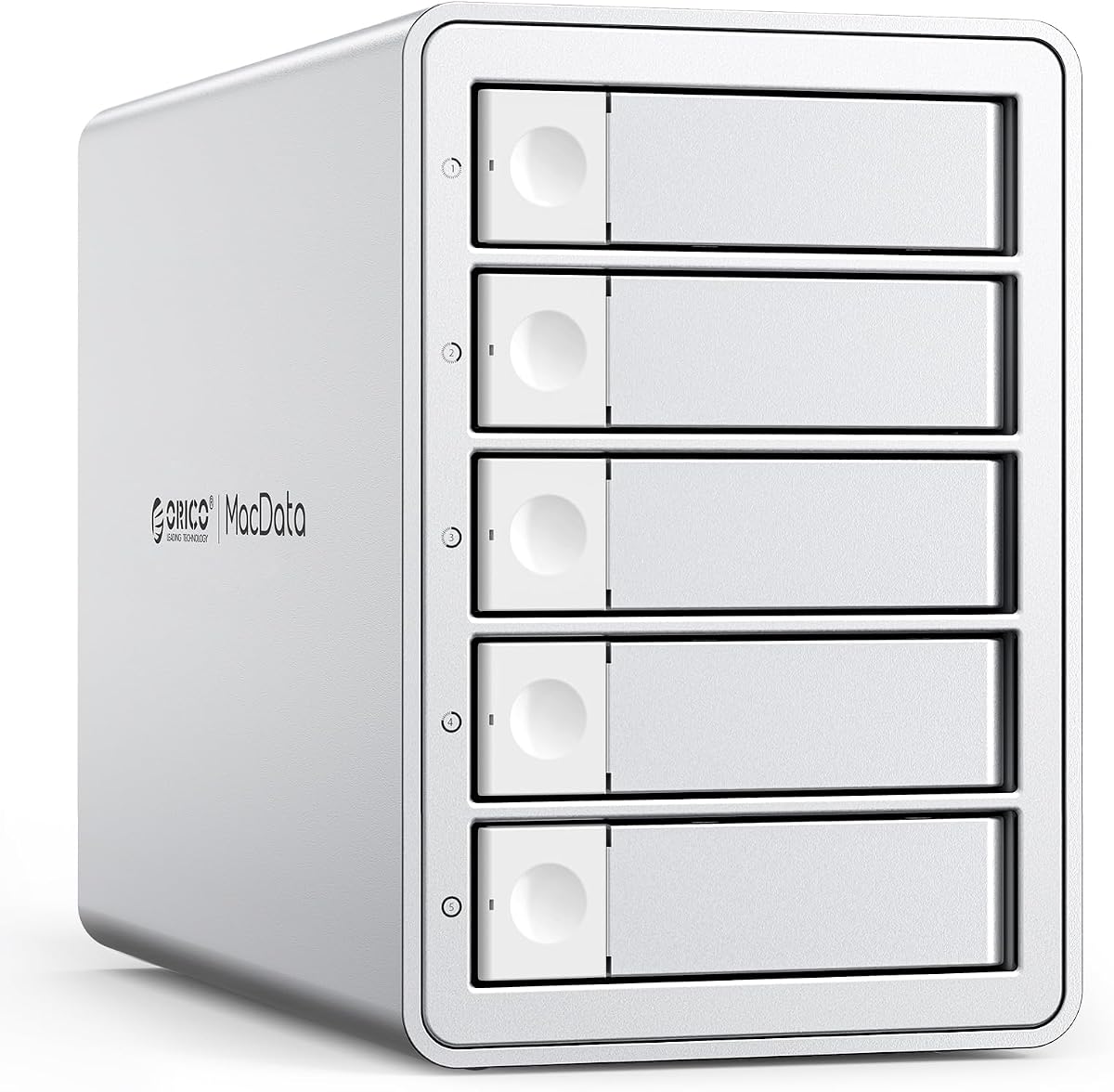
The ORICO 5-Bay RAID enclosure combines a high 4.7 rating with a broad set of hardware RAID options. It supports RAID 0, 1, 3, 5, 10, JBOD, Clone, and Clear modes, making it one of the most flexible enclosures in the guide. Five drive positions offer a useful middle ground between compact four-bay and larger ten-bay systems.
We may earn a commission when you buy through this link, at no additional cost to you.
Both 2.5-inch and 3.5-inch SATA hard drives and SSDs are supported. The stated single-drive maximum is 22TB, allowing a total capacity of 110TB when all five bays are populated. A hardware controller and physical mode controls allow the storage configuration to be managed without relying on operating-system RAID software.
Unlike many competing desktop enclosures, this model has a built-in 150W power supply. That can reduce cable clutter and support stable operation with several power-hungry mechanical drives. The rugged aluminum shell, 80mm fan, and front and rear honeycomb vents form a cooling system intended for sustained workloads. A 5Gbps USB 3.0 Type-A interface is rated for transfers up to 230MB/s.
The primary limitation is link speed. A 10Gbps enclosure can be more responsive with SSD-heavy workloads and large transfers, while this model remains more modest. RAID modes also carry familiar risks, especially when rebuildinging arrays or changing configurations without a complete backup.
This is an excellent recommendation for users who want a five-bay desktop unit with extensive RAID choices and a clean, self-contained power design. It is especially attractive for backup, archival, and multi-drive workflows where redundancy and independent disk modes matter more than maximum burst throughput.
Eight modes let users select performance, redundancy, independent access, cloning, or JBOD behavior as the workload changes. Hardware control also keeps the array definition available when the enclosure is moved between compatible systems.
The integrated 150W supply avoids a separate large adapter and provides a consistent power source for multiple drives. Aluminum construction and directed airflow support the demands of sustained multi-disk use.
We may earn a commission when you buy through this link, at no additional cost to you.
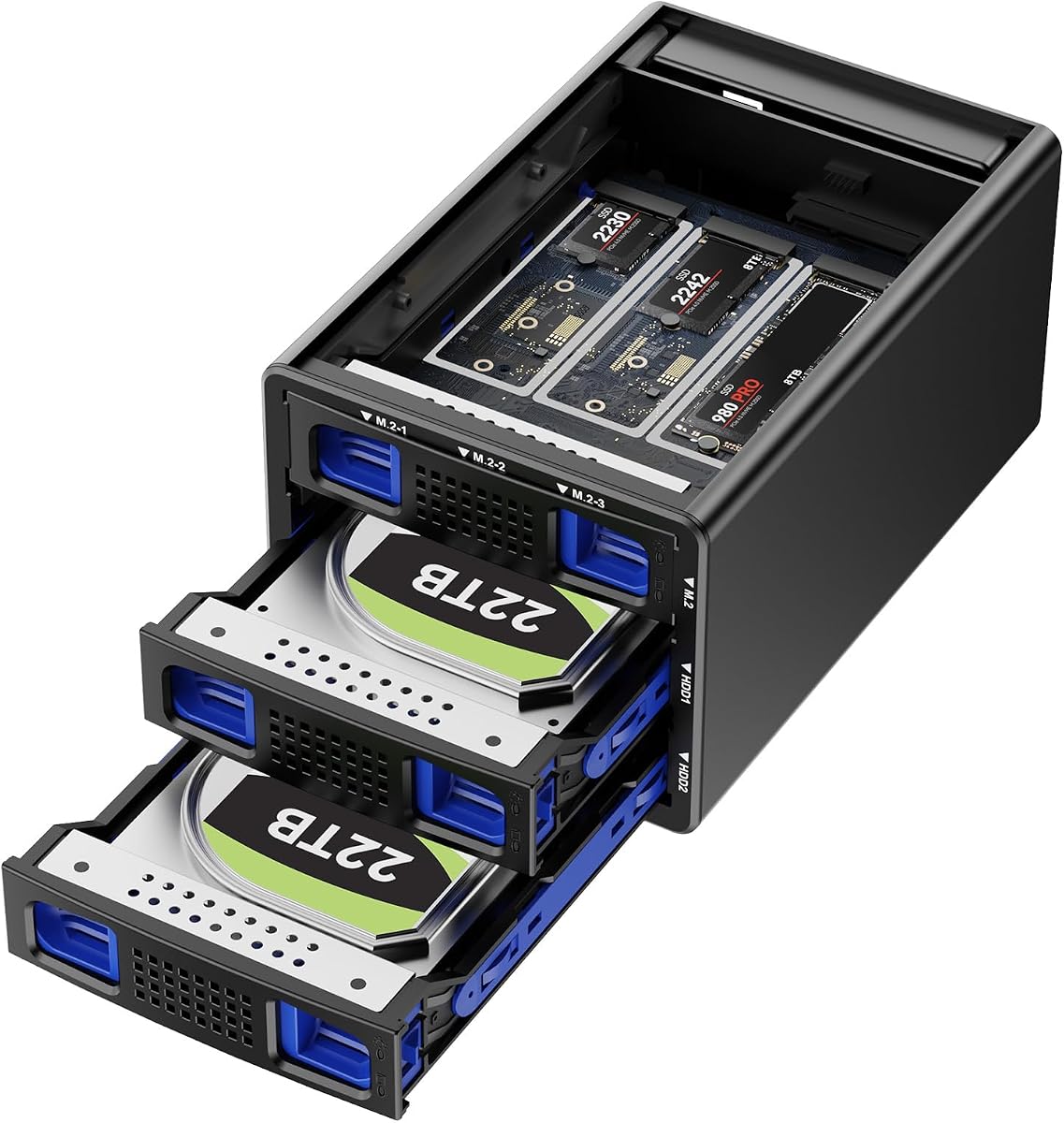
The CENMATE Hybrid NVMe enclosure is one of the most distinctive products in the lineup because it combines two SATA drive bays with three M.2 NVMe slots. It has a 4.6 rating and gives users a 10Gbps USB interface, making it appealing for creative workflows that need both high-capacity hard drives and fast NVMe storage.
We may earn a commission when you buy through this link, at no additional cost to you.
The two SATA bays accept 2.5-inch or 3.5-inch hard drives and SSDs, while the three M.2 positions support several compact NVMe form factors, including 2230, 2242, 2260, 2280, and 22110 drives. Stated limits reach 22TB per SATA drive and 8TB per M.2 SSD, with maximum aggregate capacity of 68TB.
Four modes are available: RAID 0, RAID 1, Normal, and JBOD. The product information notes that designing or changing a RAID array can result in data loss and that macOS does not include RAID software for this enclosure. USB 3.2 Gen2 supports up to 10Gbps, although the stated full-load read rate under normal conditions is 200 to 300MB/s, with exceptions applying in RAID modes.
Cooling is handled by an aluminum-alloy body and a 2.7-inch silent fan that is designed to run continuously. That approach can protect storage from heat but may produce audible noise in a quiet setting. Tool-free SATA trays simplify installation, and USB-A and USB-C cables support Windows, macOS, and Linux computers.
The hybrid design is recommended for users who want scratch NVMe space and archival SATA capacity in one enclosure. It may suit editors, photographers, and developers, but anyone considering RAID should maintain an independent backup and read the configuration instructions carefully before creating an array.
NVMe drives can handle active projects and frequently accessed files, while SATA hard drives provide economical bulk capacity. Combining both types reduces the number of external devices needed at a workstation.
RAID 0 prioritizes performance, RAID 1 favors redundancy, Normal provides independent access, and JBOD combines capacity. The array should only be created after confirming that all required data has been backed up elsewhere.
We may earn a commission when you buy through this link, at no additional cost to you.
The ORICO 4-Bay RAID enclosure brings eight hardware-controlled storage modes to a compact four-drive format. Its 4.3 rating and stated 88TB maximum make it a credible choice for users who want flexible RAID behavior without moving to a five- or ten-bay chassis.
We may earn a commission when you buy through this link, at no additional cost to you.
The enclosure supports 3.5-inch SATA disks with capacities as high as 22TB each. RAID 0, 1, 3, 5, 10, JBOD, Clone, and Clear modes can be selected through the enclosure's hardware controls. This variety allows a user to move from striped performance to mirrored redundancy, a large logical volume, or independent drive access without changing enclosure hardware.
A USB 3.0 interface paired with SATA 6Gbps drives is stated to reach up to 235MB/s. The built-in 150W power supply supports stable operation when several mechanical drives are active and avoids an external power brick. An 80mm fan, aluminum enclosure, and front and rear vents work together to move heat away from the drives.
Tray-less installation makes drives quicker to add or replace, and an independent safety lock helps prevent accidental ejection. Compared with the TERRAMASTER D4-320, the principal trade-offs are the older 5Gbps interface and the narrower stated support for 2.5-inch devices. Its advantage is the hardware RAID controller, which the TERRAMASTER does not provide.
This ORICO model is recommended for desktop users who require RAID choices, built-in power, and a four-bay footprint. It works well for local backup arrays and media storage where redundancy is important, but the enclosure should never be treated as the only copy of important data.
RAID modes support different priorities, from maximum performance to mirrored availability. Clone, Clear, and JBOD options add useful ways to prepare disks, aggregate capacity, or return a setup to a simpler state.
The four-bay aluminum format balances capacity and physical size. Tray-less access and a safety lock reduce servicing friction while helping keep installed drives secure.
We may earn a commission when you buy through this link, at no additional cost to you.
The OWC Mercury Elite Pro Quad is a four-bay enclosure with a polished 10Gb/s USB-C interface and a stated performance of up to 947MB/s. It receives a 3.7 rating, the lowest among the products reviewed, but that figure does not erase its appeal for users seeking fast access to several drives on modern Apple or Windows systems.
We may earn a commission when you buy through this link, at no additional cost to you.
Its four universal bays accept both 2.5-inch and 3.5-inch drives. The USB-C connection uses USB 3.2 at 10Gb/s and works with USB-C or Thunderbolt 3-equipped Macs and Windows PCs. The included USB-C cable keeps the initial connection simple, and the enclosure does not require separate cables for each drive.
Performance is the defining appeal, particularly when fast SSDs are installed across multiple bays. Its lower rating may reflect variability in experiences with the enclosure, software requirements, or other factors not detailed in the supplied information. The most significant specification caveat is that SoftRAID software is not included.
The enclosure is best considered for users who prioritize interface speed and compatibility with modern computers over bundled array-management software. It may suit a creative professional moving large files between SSDs or a user with an existing software-RAID solution. Prospective buyers should verify how they intend to create and manage RAID configurations before purchase.
The Mercury Elite Pro Quad remains a capable high-speed four-bay option, but the TERRAMASTER offers a more clearly documented hot-swapping and cooling package. The ORICO models may be more appropriate when hardware RAID controls are essential.
A full 10Gb/s interface helps prevent the connection from becoming the bottleneck when several fast drives are active. It is particularly valuable for creative workloads involving large media files or active project libraries.
SoftRAID is not bundled, so users seeking managed RAID should consider the cost and complexity of separate software. Buyers who only need independent direct access may find the enclosure easier to use.
We may earn a commission when you buy through this link, at no additional cost to you.
The right JBOD enclosure depends on the number and type of drives you need, the importance of redundancy, your computer's interface, and whether the system must operate silently. Use the following factors to narrow the field before choosing an enclosure.
JBOD, or just a bunch of disks, presents multiple drives as one combined storage space without distributing data across them for redundancy. This can be useful for large media libraries, temporary working files, or storage that is already protected by another backup method. A hardware-RAID enclosure may also offer JBOD alongside RAID 0, 1, 5, 10, and related modes, allowing you to change behavior as your needs evolve.
Choose JBOD when convenience and maximum usable capacity matter most. Choose a RAID-capable model when you need mirroring, parity, striping, or a controlled way to rebuild storage.
Four bays are convenient for most desktop workstations, while eight- and ten-bay designs support larger collections and future expansion. The QNAP rackmount model goes further with twelve bays, but it is intended for server infrastructure. Pay attention to supported drive sizes: many models accept both 2.5-inch and 3.5-inch SATA devices, while the SABRENT ten-bay enclosure primarily takes 3.5-inch drives and requires an adapter for 2.5-inch media.
A bay count that is slightly larger than your current need can be practical, provided the enclosure fits your workspace and power arrangement. Avoid buying so many positions that you cannot cool or conveniently service the drives.
Maximum capacity claims are useful for planning, but they depend on the exact drive capacities, controller behavior, and firmware used by the enclosure. The products in this guide list combined limits ranging from 68TB to 200TB, with some individual-drive support of 20TB, 22TB, 24TB, or 30TB. These figures should be treated as stated compatibility ceilings rather than a guarantee of every possible configuration.
Select drives that are within the enclosure's documented support and leave room for future larger disks if possible. Confirm the interface type of each hard drive, as SATA and NVMe are not interchangeable.
A 5Gbps USB 3.0 connection is suitable for many hard-drive-based archives, especially when the limiting factor is mechanical media speed. A 10Gbps USB 3.2 Gen2 connection provides a faster pipeline for SSDs, mixed workloads, and large files. The host port, cable, operating system, and drive configuration all influence the final result.
Choose 10Gbps when performance, responsiveness, or frequent transfers matter. Choose 5Gbps when the intended workload is mostly hard drives, the budget is constrained, and the computer lacks a faster host port.
Multiple hard drives generate heat, especially during sustained transfers. Aluminum housings, temperature sensors, active fans, and front-to-rear vents are common ways to maintain airflow. The TERRAMASTER emphasizes intelligent temperature control and sound-absorbing materials, while the ORICO models use aluminum enclosures and 80mm fans. CENMATE notes that its fan noise may be noticeable and that its hybrid model uses a continuously running fan.
Prioritize cooling in a closed office or a system running long backup jobs. If silence is critical, place the enclosure away from your desk and consider models that explicitly document low standby noise.
Hot-swappable bays let you remove or replace a drive without shutting down the entire enclosure, which is valuable for backup rotation and maintenance. Tool-free trays speed up installation, while push-lock, tray-less, safety-lock, and Kensington features address different physical-security needs. Independent power switches and status LEDs also make it easier to identify inactive or failed drives.
Favor serviceable designs for frequently maintained systems. For unattended installations, prioritize locking mechanisms, clear drive controls, and an enclosure that can be mounted or secured safely.
Most desktop enclosures advertise plug-and-play support for Windows, macOS, and Linux, but feature parity can differ. The QNAP TR-004 is specifically tied to compatible QNAP NAS models and has notable restrictions involving QTS versions and storage-pool merging. The OWC enclosure does not include SoftRAID, while the hybrid CENMATE states that macOS does not provide RAID software for its configuration.
Read the compatibility notes before buying, especially if you plan to combine storage with a NAS, use operating-system RAID tools, or move arrays between computers. Verify the host supports the chosen USB interface and any included management features.
Before installing drives, confirm that the enclosure's supported media match the hard drives or SSDs you intend to use. Read the manual, identify the RAID or JBOD controls, and make sure the enclosure is on a stable surface with adequate ventilation. Connect the appropriate power supply and data cable to the computer, then install the drives according to the tool-free, tray, or tray-less procedure specified for that model.
Format each drive according to your intended use and operating system. A newly installed disk may need to be initialized, partitioned, and assigned a drive letter before it appears as usable storage. If creating a RAID array, document the selected mode, back up any data already on the drives, and avoid interrupting the controller while it builds or synchronizes the array.
For routine care, power down the enclosure before removing a drive unless the manufacturer explicitly supports hot-swapping. Keep vents clear, avoid placing the chassis in a confined or dusty area, and periodically check SMART data and backup logs. Replace failing drives promptly, maintain an independent backup, and confirm that cooling fans and status indicators behave normally during sustained workloads.
A JBOD enclosure combines multiple disks into one usable storage space without providing RAID redundancy. If a drive fails, the combined data can become unavailable, so important files should still be copied to an independent backup. Some enclosures offer JBOD alongside RAID modes, allowing the user to select a different configuration later.
No. A conventional JBOD enclosure is directly attached to a computer and does not independently provide network services, user accounts, or NAS applications. Products such as the QNAP TR-004 have special QNAP compatibility, but it remains a DAS with defined restrictions. Always check whether a product can function as a full NAS before buying.
Many desktop models support both 2.5-inch SSDs and 3.5-inch hard drives, but not every bay accepts every size. The CENMATE Hybrid model adds dedicated M.2 NVMe slots in addition to two SATA bays. Check the documented drive sizes and adapters before installing mixed media.
A faster interface can improve transfers, but it cannot make a slow drive exceed its own capabilities. Mechanical hard drives may be limited by platter and head mechanics, while SSDs benefit much more from a 10Gbps link. The host port, cable, RAID mode, workload, and number of active drives also influence real performance.
JBOD does not supply RAID-style redundancy, so a failed drive may make data on the combined volume inaccessible. Recovery can require specialist software or professional service, especially if the failed drive is partially readable. Maintain multiple copies and test your restoration process before relying on the enclosure as your only storage location.
Several models explicitly support hot-swapping, including the TERRAMASTER D4-320 and CENMATE four-bay unit. The SABRENT also uses hot-swappable tray-less bays. Even when supported, follow the manufacturer's removal procedure, wait for the host to stop accessing the disk, and never remove a drive while data is actively being written.
A four-bay unit is usually easier to place, power, cool, and maintain, and it is sufficient for many personal backups or project archives. A ten-bay enclosure offers more expansion room and independent controls but takes up much more space. The best choice depends on your current drive count and realistic growth plan.
RAID can improve availability or performance, but it is not a substitute for a separate backup. RAID 1 may protect against one drive failure, while RAID 5 or RAID 10 adds resilience, yet user errors, ransomware, controller failures, and environmental events can still affect an array. Keep at least one independent copy of critical data elsewhere.
The TERRAMASTER D4-320 is the strongest all-around four-bay recommendation, combining a 10Gbps interface, 120TB stated capacity, hot-swapping, and quiet tool-free operation. The CENMATE four-bay model is a practical budget-oriented alternative, while the SABRENT ten-bay enclosure is the premium choice for users who need many independently controlled drive positions.
Prioritize the details that affect your daily workflow: match the interface to the host, ensure the enclosure accepts your drive sizes, account for noise and cooling, and decide whether you need true JBOD behavior or hardware RAID. QNAP users should review NAS compatibility carefully, while OWC buyers should account for the absence of bundled RAID software.
Finally, verify current specifications and market availability before ordering, since manufacturers can update firmware, compatibility information, and product details. Whatever enclosure you choose, maintain a separate backup of irreplaceable data and never rely on JBOD alone as a complete data-protection strategy.